Help center
The complete guide to selling on CanGerard
From sign-up to your first sale, step by step. How to create the account with your store profile and tax details included, publish your Catalan products with templates and set up payouts.
1Before you start: what you need
This guide walks you, step by step, from creating your seller account to publishing your first products and managing orders on CanGerard, the online marketplace for Catalan products.
Onboarding has five main milestones, and the first is the one that matters most: at sign-up you get everything done (store, shipping and tax details), so the rest unlocks on its own with the team’s review:
- 1Create your seller account: the store profile, the shipping origin address, your tax details and your personal details. Once this step is done, everything is ready to sell.
- 2Choose your subscription plan in the chooser shown right after registering: a free 14-day trial with a card. From 1 October 2026 an active subscription (or the founding sellers’ lifetime-free account) is required for your store to be visible.
- 3Verify your email address. Until you do, you won’t be able to save anything in Seller Central.
- 4The CanGerard team reviews and approves your store: your catalogue becomes visible and, because your tax details were saved at sign-up, customers can buy from day one.
- 5Create your products and publish them. With templates, the next ones take moments.
- 6Set up payments with Stripe to receive your earnings in your bank account. You don’t need it to publish or to sell: earnings accumulate and are transferred once you complete onboarding.
Launch offer (until 1 October)
CanGerard opens to the public on 1 October 2026. Stores that are approved with at least one product published on that day are founding sellers: a lifetime-free account, no fee now or ever. From then on a subscription is required: the monthly plan (€10/month + VAT) or the yearly plan (from €50/year + VAT, climbing by tier with the registered sellers), always with a 14-day trial. In every case, the only variable cost is the 10 % commission per sale, which is refunded if there is a return. Full details in the “The seller subscription” section and on the /en/sell page.
Documents and details to have ready
| Field | Required | Details |
|---|---|---|
| Tax ID | At sign-up | Your NIF, CIF or NIE (we validate the check digit). Full name if you are self-employed, or the registered name if you are a company. |
| Full fiscal address | At sign-up | Street, postal code (5 digits), city and province, exactly as on your tax certificate. |
| VAT regime | At sign-up | General or franchise (no VAT). If in doubt, ask your accountant. |
| RGSEAA number | Food | The sanitary register of your food business. Required to publish food products. |
| Shipping origin address | At sign-up | Where you will ship orders from. Required to publish products. |
| Bank account | To get paid | An IBAN in your name or your company’s. Stripe asks for it during its onboarding, not CanGerard. |
| Phone and email | Yes | A working phone number and an email where you will receive copies of your invoices. |
| Product details | Yes | Title, description, price, VAT, stock, real packed weight and dimensions, the manufacturer (product safety) and, for food, the net content and the ingredients. |
| Photos | Recommended | Up to 6 images per product (JPG, PNG, WebP or GIF). Upload them at any size: they are compressed automatically before being sent. |
Platform language
CanGerard is multilingual: Catalan (primary), Spanish and English. URLs include the language, e.g. cangerard.cat/en/seller. Your product texts are also requested in all three languages.
2Create your seller account
How to reach the sign-up page
- 1In the secondary navigation bar, click Sell on CanGerard. This opens the commercial page
/en/sell, with the plans and the launch offer. From there, click Register as a seller. - 2In the footer, under the “Sell with us” column, Become a seller leads to the same commercial page.
- 3If you already have a buyer account, the account menu has the shortcut Start selling on CanGerard, which goes straight to the form.
Every route ends at /en/seller/register, the Sell on CanGerard page.
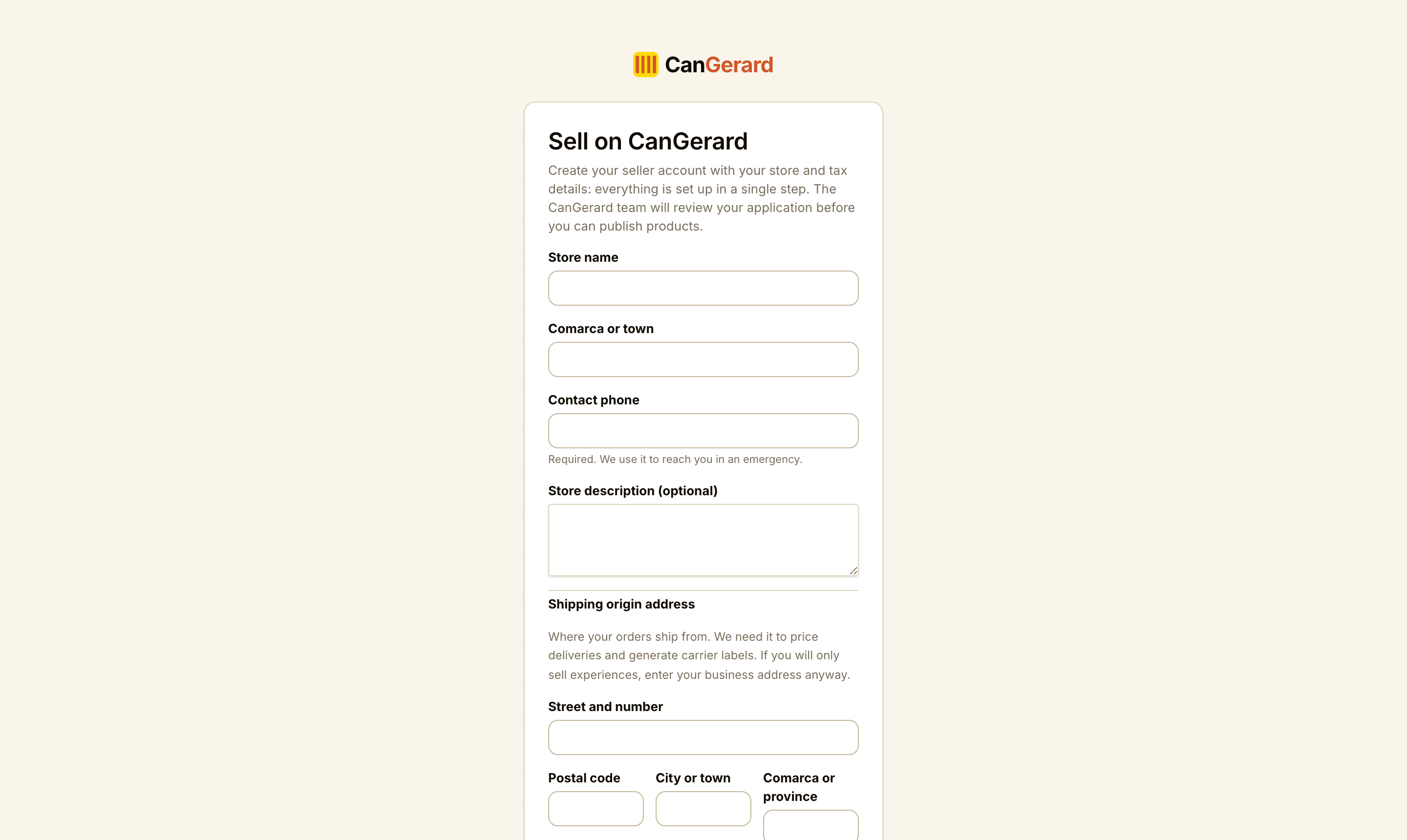
Two paths depending on your session
If you have no account, you see the full form. If you already have a buyer account and are signed in, you see “Turn your account into a seller account”, which only asks for the store details, the origin address and the tax details. If you are already a seller, we take you straight to Seller Central.
The form, field by field
| Field | Required | Details |
|---|---|---|
| Store name | Yes | The trading name buyers will see. Minimum 2 characters. |
| Comarca or town | Yes | Where your products are from (e.g. “Priorat” or “Vic”). |
| Contact phone | Yes | Between 5 and 20 digits. We use it to reach you in an emergency. |
| Store description | No | A short introduction (up to 600 characters). You can edit it later. |
| Street and number, Postal code, City or town, Comarca or province | Yes | The shipping origin address: where you will ship orders from. Needed to price shipping and generate labels. If you will only sell experiences, enter your business address anyway. |
| Legal name | Yes | Your fiscal identity, exactly as on your tax certificate: full name (self-employed) or registered name (company). It will appear on the invoices for your sales. |
| NIF / CIF / NIE | Yes | No spaces or dashes. We validate the check digit. |
| Fiscal address (street, postal code, city and province) | Yes | Your fiscal domicile, which may differ from the shipping origin address. |
| Fiscal contact email | Yes | Where we’ll send you a copy of every invoice issued in your name. |
| Invoice series prefix | No | Left blank, it is derived from your NIF. It can’t change once invoices have been issued. |
| VAT regime and Exemption legal basis | Yes / Conditional | General or franchise. The legal basis is only needed under the franchise regime (e.g. “Art. 20 LIVA”). |
| RGSEAA number (food) | Food | The sanitary register. If you don’t have it to hand yet, you can add it later from the Tax page; it is required to publish food products. |
| Full name | Yes | Your real name. |
| Email address | Yes | Your sign-in identifier. Must be valid and not used before. |
| Password | Yes | We recommend 10 characters or more with a letter, a number and a special character (the system rejects weaker passwords). |
| Date of birth | Yes | You must be 18 or older, and tick the box “I declare that I am 18 or older.” |
| Legal checkboxes | Yes | Accept the purchase terms and the privacy policy, the Seller Terms and Conditions with their annexes and the prohibited-products policy, and authorise third-party billing (see the box below). |
What is the billing agreement you accept at sign-up?
The last legal checkbox is the third-party billing agreement (RD 1619/2012). It is a formality: it authorises us to issue and send the purchase receipt (or the invoice) to the buyer on your behalf every time they place an order with you, and to send you a copy. Without this authorisation we could not legally issue the documents for your sales. You can find the full text in Annex I of the seller terms and, once inside, on the Tax page of Seller Central.
- 1With every required field filled in, click the yellow Register your store button.
- 2While it processes you’ll see One moment…. Don’t click again or reload.
- 3When it finishes, you land directly in Seller Central: first you see the subscription plan chooser (14-day trial; you can also continue without subscribing yet) and then the Shipping centre with the welcome box. Your store is left in the “Pending review” state, and you receive the verification email “Confirm your email on CanGerard”.
If you are already a buyer: upgrading your account
If you are signed in, the title becomes “Turn your account into a seller account”. Just fill in the store profile, the origin address and the tax details, accept the seller terms and the billing agreement, and click Create your store.
Common errors
| Message | What to do |
|---|---|
| “An account with this email address already exists.” | Sign in and upgrade to a seller account, or use a different email. |
| “Your password must be at least 10 characters…” | Strengthen the password: 10 or more characters with a letter, a number and a special character. |
| “The tax id (NIF/CIF) is invalid.” | Check the number: we validate the check digit. Type it without spaces or dashes. |
| “Please check the details you entered and try again.” | A required field is missing or has the wrong format (phone, postal code…). |
| “Too many attempts. Please wait a few minutes and try again.” | Security limits. Wait a while and try again. |
3The seller subscription (from 1 October 2026)
From 1 October 2026, keeping your store and products visible on CanGerard requires an active seller subscription or a lifetime-free account. It is the platform’s only fixed cost: the 10 % commission per sale is the same on every plan, and there is no other fee.
| Plan | What it includes and what it costs |
|---|---|
| Lifetime-free account | €0, forever. Founding sellers have it: stores that at 00:00 on 1 October 2026 were approved with at least one product published, and stores the CanGerard team grants it to. You keep every current feature; only features added in the future exclusively for paid plans are left out. |
| Monthly plan | €10 per month + VAT. Paid month by month, cancel whenever you like, no commitment. |
| Yearly plan | From €50 per year + VAT. The price climbs by tier as more sellers register (€60 from 50 sellers, €70 from 60, and so on up to €102 from 90). The price you see when subscribing is kept on every renewal. |
The 14-day trial and how to start
- 1Right after registering, Seller Central shows you the plan chooser (it is always available under Subscription in the menu too). Pick monthly or yearly: both prices are shown before VAT with the total next to them.
- 2Click Start the 14-day trial. You go to Stripe’s secure page to leave a card: nothing is charged during the trial, but the card is required so billing can start by itself when the trial ends.
- 3Back on CanGerard the page shows “Subscription activated” and the Trial status with the date of the first charge. You also get a confirmation email.
- 4Unless you cancel first, the first charge for your plan is made on the day the trial ends and then every month or every year. For each charge you receive the invoice by email (it is on the same page too).
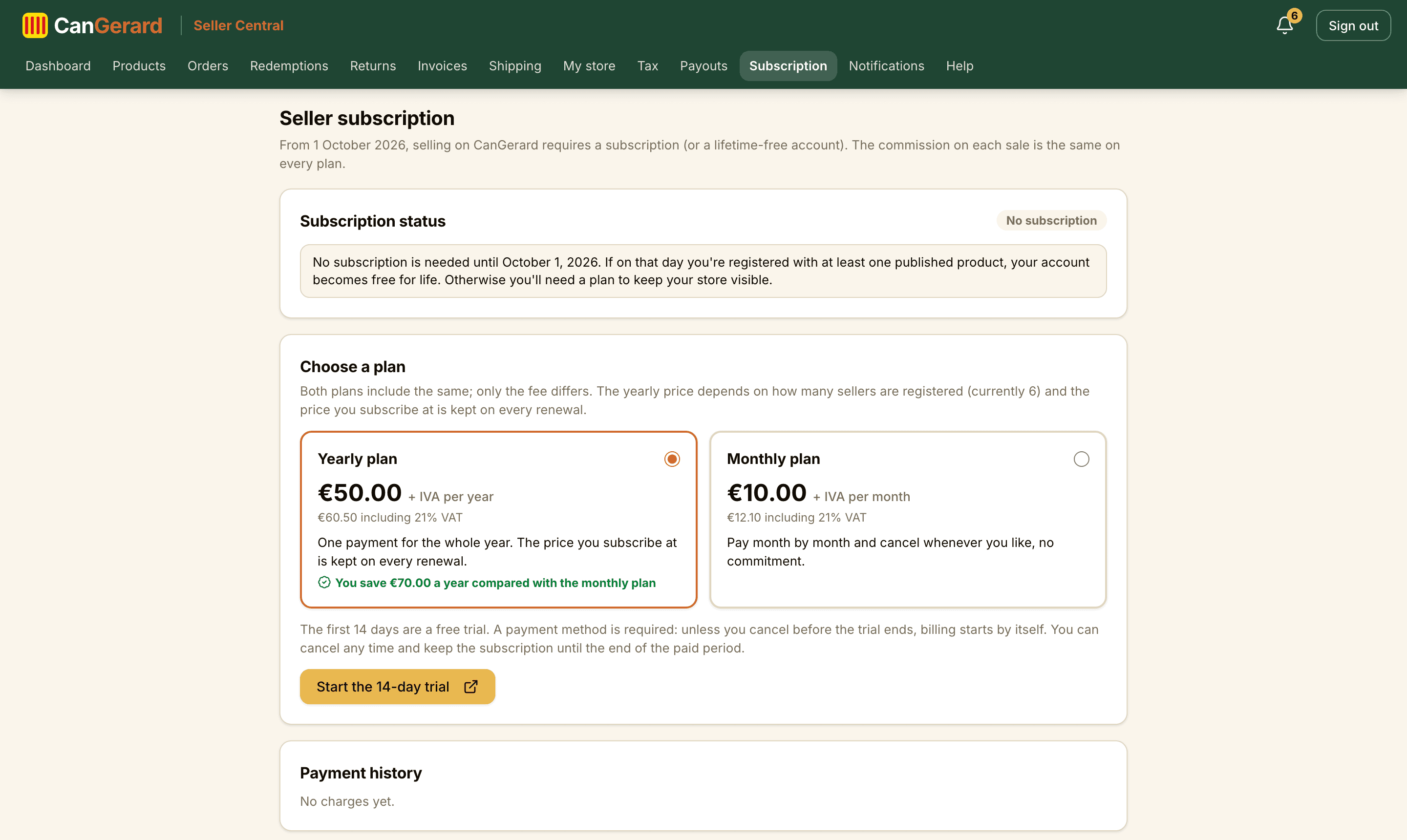
One trial per seller
The 14-day trial applies to your first subscription. If you cancel and subscribe again later, you are charged right away.
You can leave it for later
The plan chooser has the Continue: set up shipping link to carry on with onboarding without subscribing yet. The Dashboard reminds you with a notice, and you can come back to Subscription any time. If you are registered and publish a product before 1 October 2026, there is nothing to do: your account becomes free for life.
The Subscription page
- Status: free for life, trial, active, cancelled (active until the period ends), payment overdue, ended or no subscription.
- Plan, price and dates: the end of the trial (first charge), the renewal date or, if you cancelled, until when it stays active.
- Payment method and receipts: opens the Stripe portal to change the card or see receipts.
- Cancel subscription and, if you change your mind before the period ends, Resume subscription.
- Payment history: every charge with its amount (net + VAT), the period it covers and the PDF invoice issued by CanGerard.
Cancelling the subscription
You can cancel at any time from Subscription. The cancellation takes effect at the end of the period you already paid (or of the trial): until then everything stays the same and the unused part is not refunded. The day after, your store and products stop being visible to buyers until you subscribe again.
Without a subscription, your store is hidden
If you have no active subscription (you never took one out, you cancelled it, or a charge failed and could not be resolved), your products do not appear in the store and cannot be bought, and the Dashboard says so in red. You lose nothing: products keep their status and everything is back online instantly when you start a plan. Meanwhile you can keep managing products, shipping and the orders in progress, which you still have to complete.
If a charge fails
Stripe retries over a few days and we email you; meanwhile the store stays visible. Update the card with Payment method and receipts. If the retries run out, the subscription ends and the store is hidden until you take out a new one.
Where the terms say so
The whole subscription regime (plans, trial, billing, cancellation and lifetime-free account) is in clause 11.8 of the Seller Terms: /en/seller-terms#payments.
4Sign in and verify your email
Access to Seller Central
Seller Central has its own sign-in at /en/seller/sign-in.
- 1Enter your Email address.
- 2Enter your Password.
- 3Click Sign in.
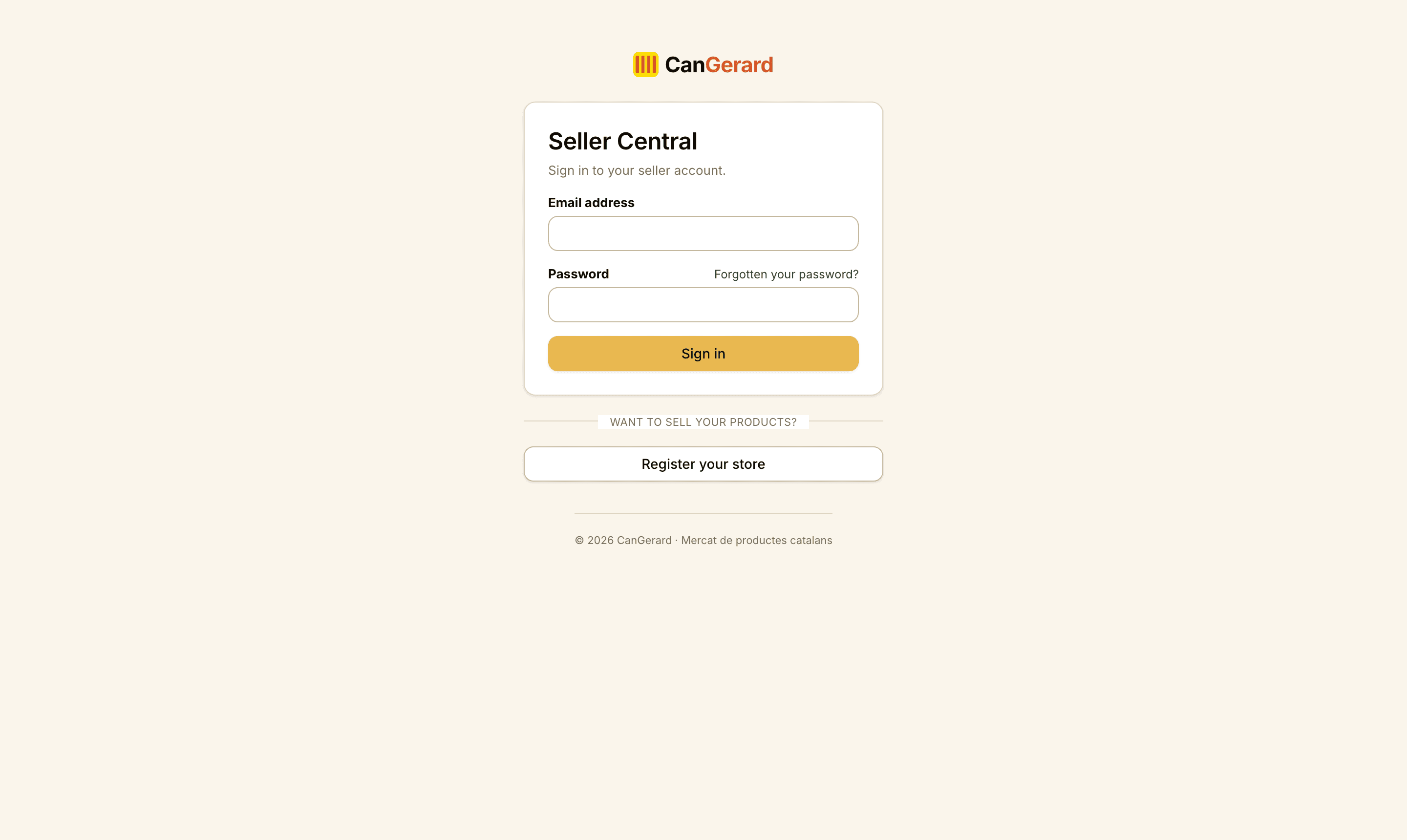
Forgotten your password
- 1Click Forgotten your password? (next to the password field).
- 2Enter your account’s email address and click Send the link.
- 3Open the email, type your New password and confirm with Save new password.
Expired links and sessions
The reset link lasts 60 minutes and works only once. If you see “Invalid link”, request a new one. Changing your password closes all the account’s open sessions, for security.
Verify your email address (essential)
Until you verify your email, the notice “Confirm your email address” sits at the top of Seller Central and you won’t be able to save anything: no fiscal details, no products, no shipping methods, no store profile. Open the verification email and click the link. If you can’t find it, click Resend email in the notice itself.
5The dashboard and the “Pending review” state
The onboarding screen
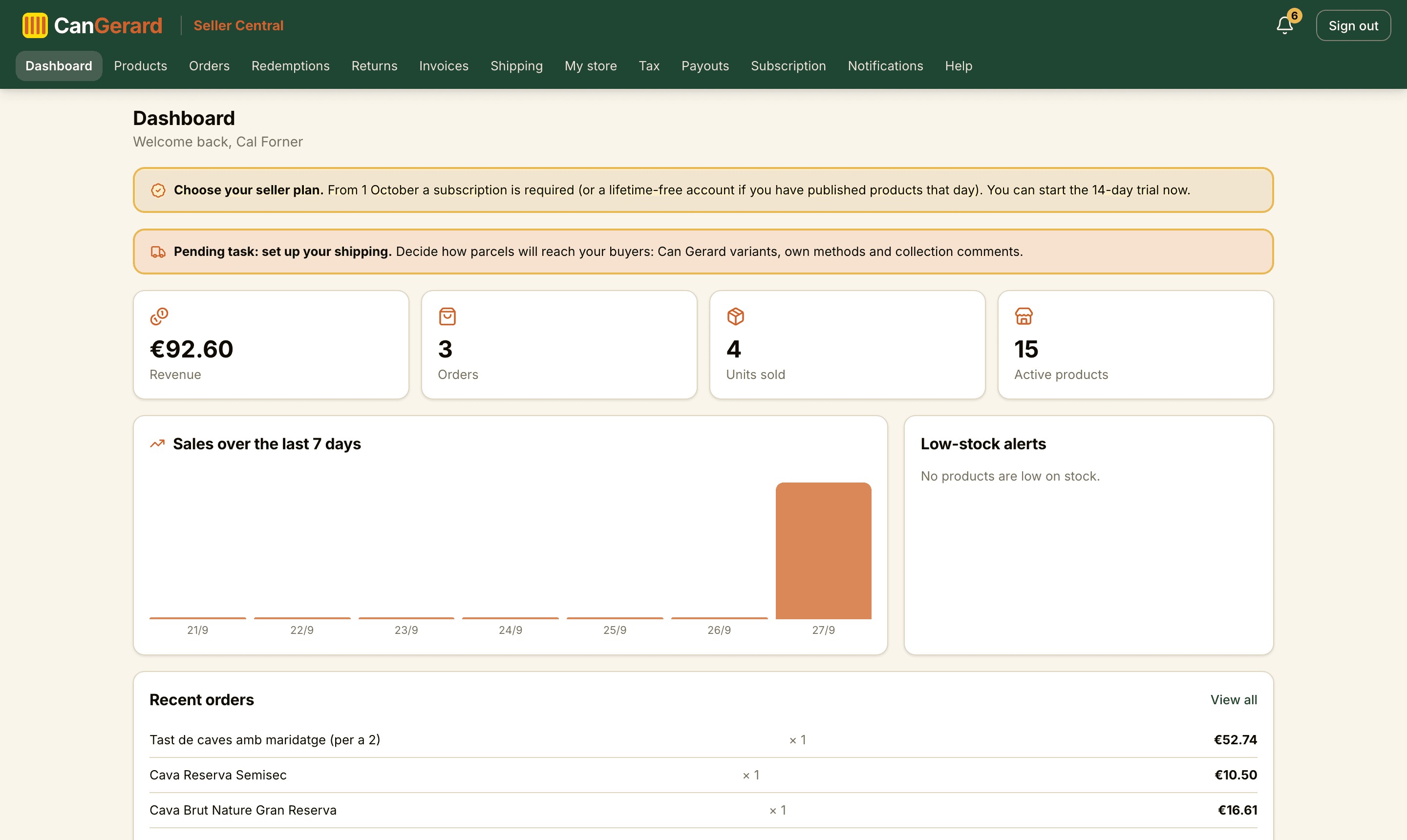
Right after registering, the Dashboard shows the yellow “Pending review” badge, the title “Your store is under review” and this explanation: “Thanks for registering! Everything is in place: your store and tax details have been saved. Our team is now reviewing your application and we will let you know once it is approved. In the meantime you can start preparing your products.” Below it sits the checklist:
- 1Seller account created: done.
- 2Tax details completed: done, because you provided them at sign-up itself.
- 3Shipping set up: done once you go through the Shipping centre (it is the welcome screen) and save anything or confirm with My shipping is set up; otherwise the Go to the shipping centre button takes you there.
- 4Choose your subscription plan: done if you already started the trial (or have the free account); otherwise the See the plans button takes you to the chooser.
- 5Review by the CanGerard team: in progress. “We’re reviewing your application. Once approved, your catalogue becomes visible in the store.”
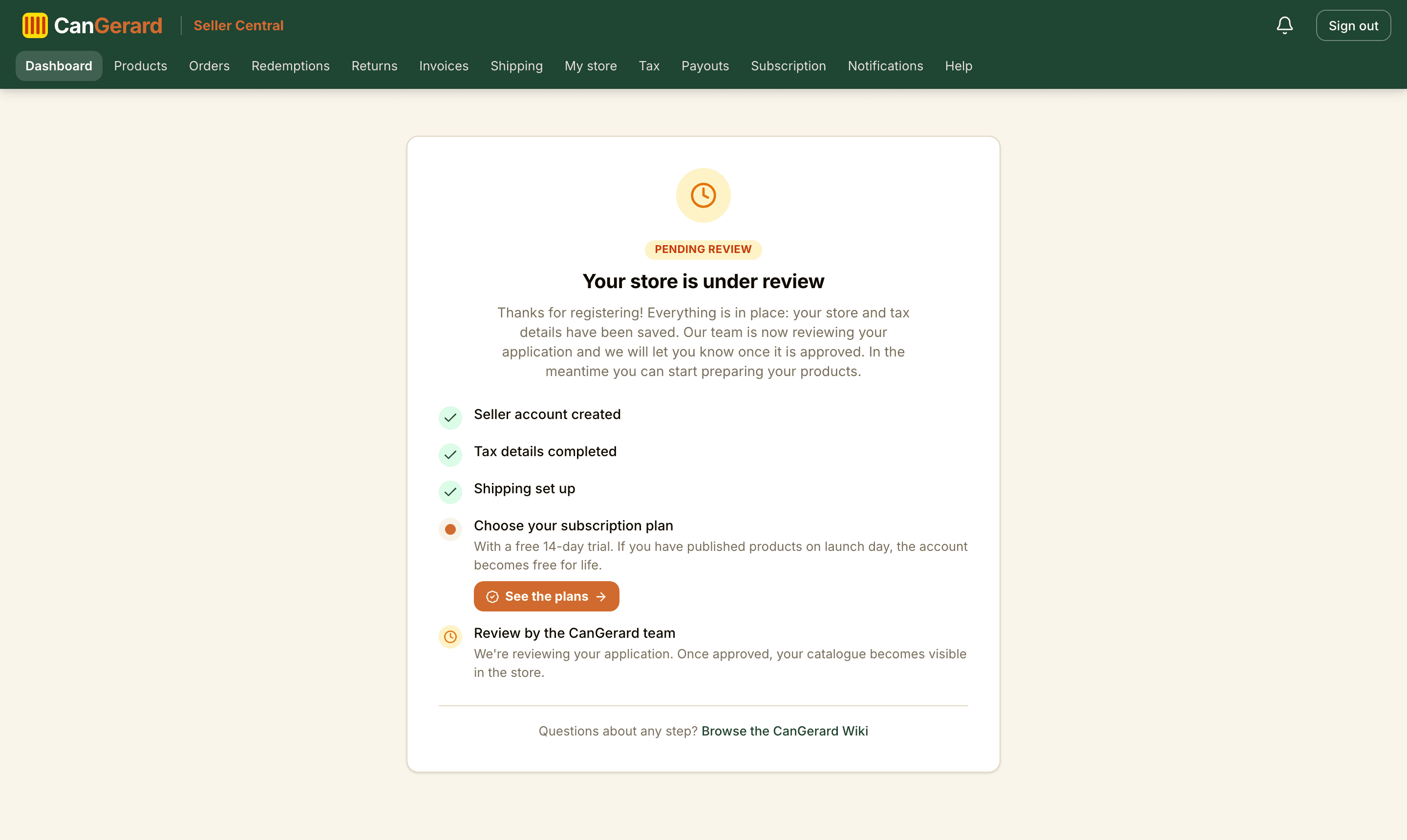
No mandatory step is left for you
Because your tax details are saved at sign-up, the only thing missing is the team’s review, which starts the moment you register. While you are pending you can prepare everything (draft products, shipping, store profile). When the store is approved, your catalogue becomes visible and customers can buy from day one. If your profile was created by the CanGerard team, you may still see the “Complete your fiscal details to sell” step, with the button that leads to the Tax page.
Seller Central navigation
| Section | What it’s for |
|---|---|
| Dashboard | Onboarding status or, once approved, your sales summary. |
| Products | Create, edit, publish and archive your products (with templates). |
| Orders | The orders you receive, shipping labels and delivery status. |
| Redemptions | Validate the codes of the experiences you sell. |
| Returns | Buyers’ return requests. |
| Invoices | The sale invoices the platform issues in your name. |
| Shipping | The Shipping centre: the Can Gerard shipping variants, your own methods and the shipping comments. |
| My store | Your public store profile and the shipping origin address. |
| Tax | Your fiscal details and the billing agreement. |
| Payouts | Stripe onboarding, earnings and commission invoices. |
| Subscription | Your seller plan: status, trial, cancellation and payment history. |
| Notifications | All your alerts and your notification preferences. |
| Help | This very wiki. |
To the right of the header are the notification bell and the Sign out button.
6Review and edit your tax details
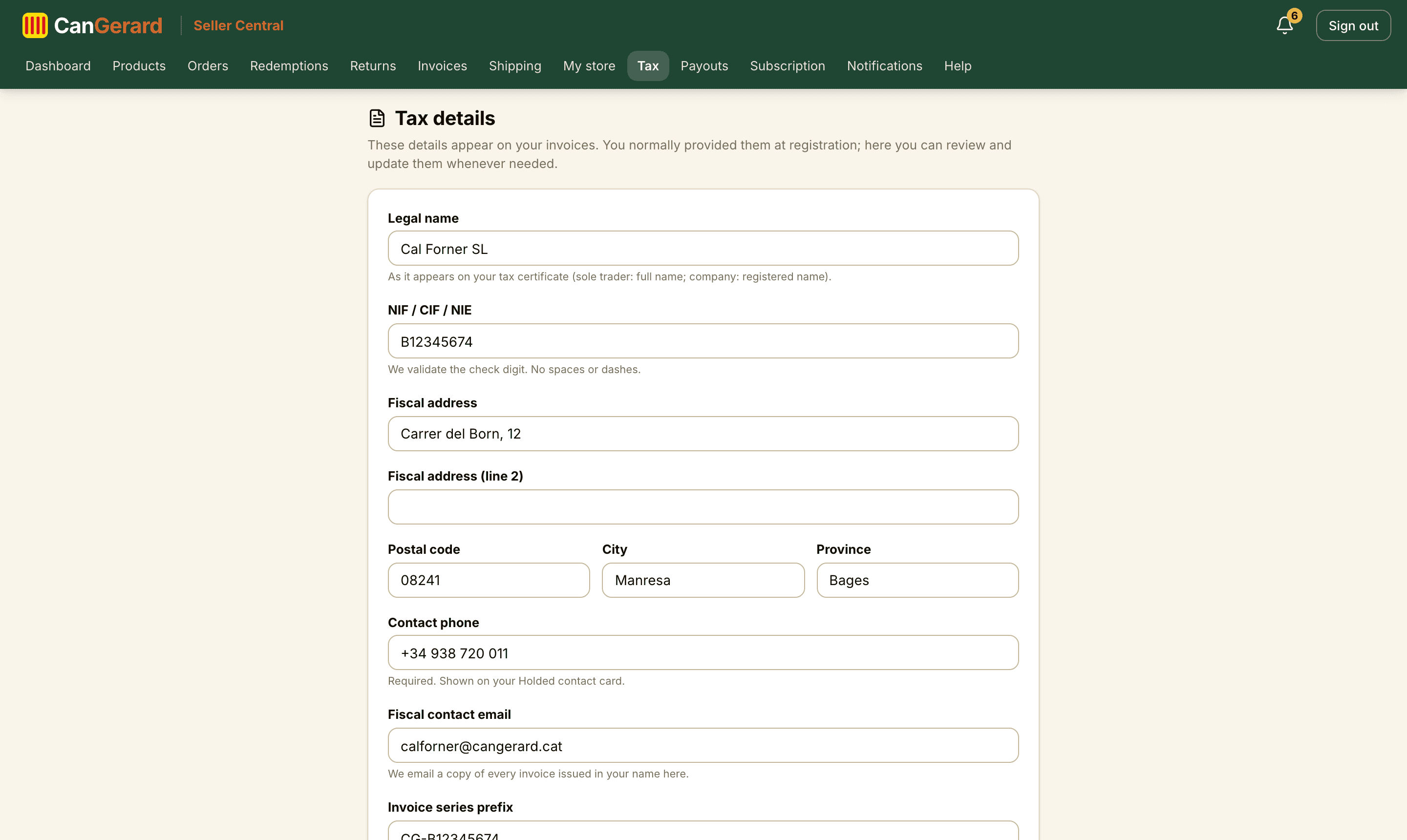
Your fiscal details are what appears on your invoices and are what lets you sell. You normally provided them at sign-up: the Tax page in the menu is where you review them and update them when they change (address, contact email, VAT regime…). If your profile was created by the CanGerard team and they aren’t there yet, this is where you complete them; while any are missing, your products show in the store but nobody can buy them, and the Dashboard shows the notice “You can’t sell yet. Complete your fiscal details →”.
The “Tax details” form
| Field | Required | Details |
|---|---|---|
| Legal name | Yes | Exactly as on your tax certificate: full name (self-employed) or registered name (company). |
| NIF / CIF / NIE | Yes | No spaces or dashes. We validate the check digit. |
| Fiscal address | Yes | Street and number (with an optional second line). |
| Postal code, City and Province | Yes | The full fiscal address (5-digit postal code). |
| Contact phone | Yes | Shown on your billing contact card. |
| Fiscal contact email | Yes | We send a copy of every invoice issued in your name here. |
| Invoice series prefix | No | Left blank, it is derived from your NIF. It can’t change once invoices have been issued. |
| VAT regime | Yes | Pick your regime (see the table below). |
| Exemption legal basis | Conditional | Only if your regime doesn’t charge VAT (e.g. “Art. 20 LIVA”). |
| RGSEAA number (food) | Food | The General Sanitary Register of Food Companies. Required to publish food products. |
- 1Fill in the required fields and click Save details. You’ll see “Tax details saved.”
The VAT regimes
| Regime | When to choose it |
|---|---|
| General regime (21 / 10 / 4 %) | The most common. You charge VAT at each product’s rate. |
| Franchise (≤ €85,000, no VAT) | No VAT charged. You must state the legal basis of the exemption, and products with VAT ≠ 0 % move to draft. |
Equivalence surcharge and REAGP
For now the platform only invoices under the general and the franchise regimes. If you are under the equivalence surcharge or the special agricultural regime (REAGP), write to us at gerard@cangerard.cat before registering.
Switching to Franchise
If you switch your regime to Franchise, the system drafts every product with a VAT rate other than 0 %. You’ll need to review them and republish them with VAT at 0 %.
What we use this data for
It appears on the sale invoices cangerard.cat issues in your name and on your behalf, under the third-party billing agreement you already accepted at sign-up (RD 1619/2012).
7The third-party billing agreement
When a customer buys from you, cangerard.cat automatically sends them the purchase receipt (or the full invoice, if they request one) on your behalf, and sends you a copy. To make that possible, the law (art. 5 of RD 1619/2012) requires a prior agreement in which you, as the seller, authorise us to issue those documents for you: the third-party billing agreement.
You already accepted this agreement at sign-up: it is the checkbox “I authorise cangerard.cat to issue and send, on my behalf, the purchase receipts and invoices for my sales…” on the registration form. It is a formality: all it does is let us send the receipts for your sales on your behalf. Without it, though, we could not legally issue any sale document for you.
Where to review it
On the Tax page of Seller Central, below the fiscal-details form, you can read the full text of the agreement and the date you accepted it (“Signed on …”).
New versions
If we update the document, we’ll flag it on the Tax page and you’ll be able to sign the new version with the Sign new version button.
8The team’s approval
The review starts the moment you register and doesn’t depend on any other step. When the team approves your store, you’ll receive a notification (in-app and by email) and your catalogue becomes visible in the store: the products you have ready can be published, anyone can view your public store and, because your tax details were saved at sign-up, customers can buy from day one.
Possible store states
| State | What it means |
|---|---|
| Pending | Awaiting review. You can prepare everything, but not publish. |
| Approved | Your catalogue can be visible: you can publish (with a complete origin address) and, with the fiscal side done, sell. |
| Rejected | The application wasn’t approved. You’ll see the reason, if one was given. |
| Suspended | The account has been temporarily suspended and active products revert to draft. Contact the CanGerard team. |
Make the most of the wait
While you wait you can complete your fiscal details, set up your shipping methods, polish your store profile and keep products saved as drafts. That way, on approval day you only need to activate them.
9The store profile and the origin address
Go to My store. There are two cards: the public profile and the shipping origin address.
Public profile
| Field | Required | Details |
|---|---|---|
| Store name | Yes | The visible trading name. Minimum 2 characters. |
| Comarca or town | No | Where your products are from. |
| Description (CA / ES / EN) | No | Your store introduction in each language (up to 600 characters). |
- 1Edit the fields and click Save changes. You’ll see “Your store profile has been updated.”
Shipping origin address (required to publish)
The second card holds Street and number, Postal code, City or town and Comarca or province: where you will ship orders from. We need it to price shipping and generate labels, and without it no product can be published. If it’s missing, the Dashboard shows the notice “Origin address missing.” Save it with Save origin address.
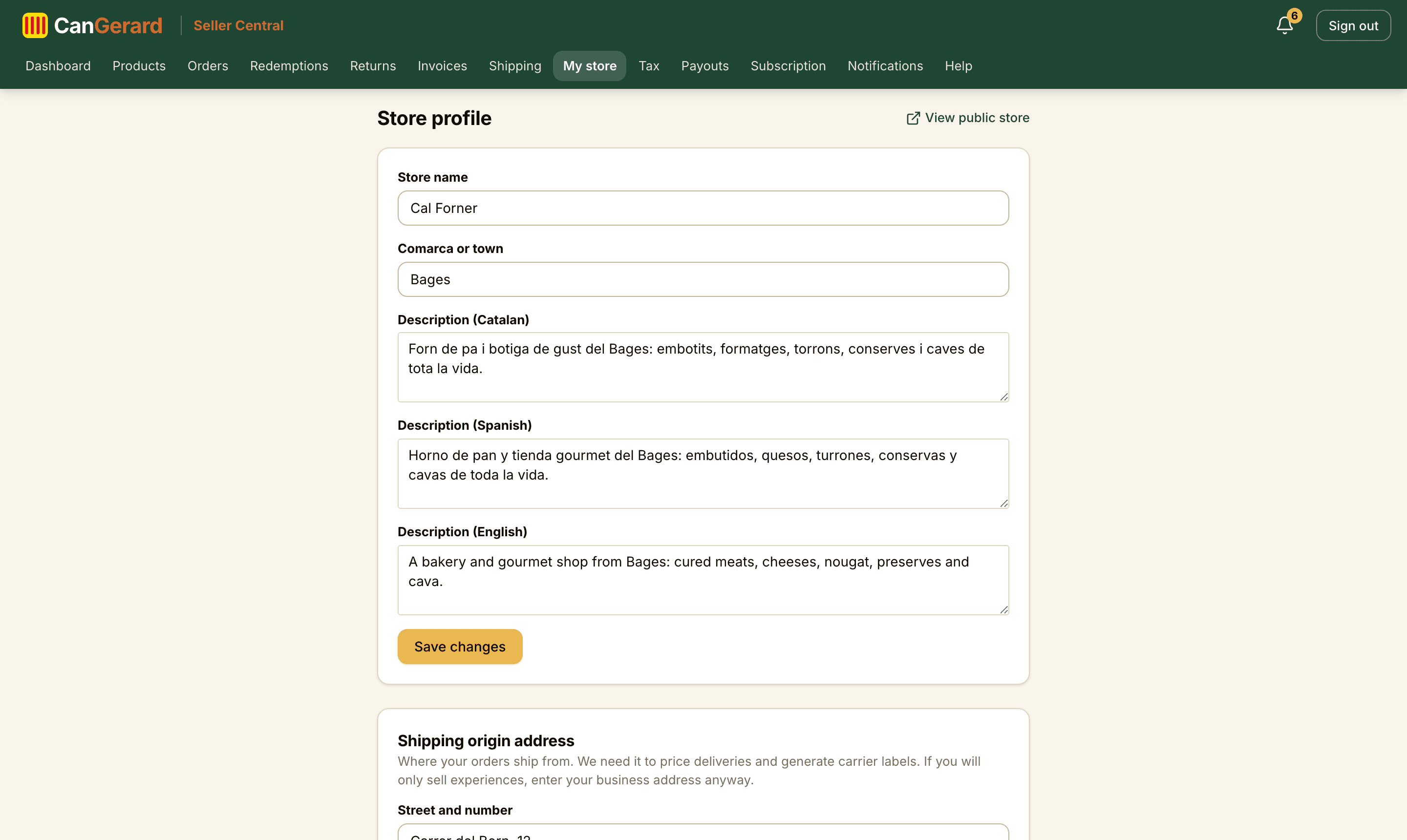
Once your store is approved, the View public store link appears at the top, opening your page exactly as buyers see it.
Vacation mode
On the same page sits the “Vacation mode” card: pick From and Until and click Set vacation. During those dates (inclusive), your catalogue stays visible but nobody can buy: the product page shows a friendly notice with the dates of your absence. The day after the end date everything reactivates on its own, or come back earlier with Reopen the shop. Remember to prepare pending orders before you leave: the 4-business-day countdown doesn’t take holidays.
10Set up shipping (the Shipping centre)
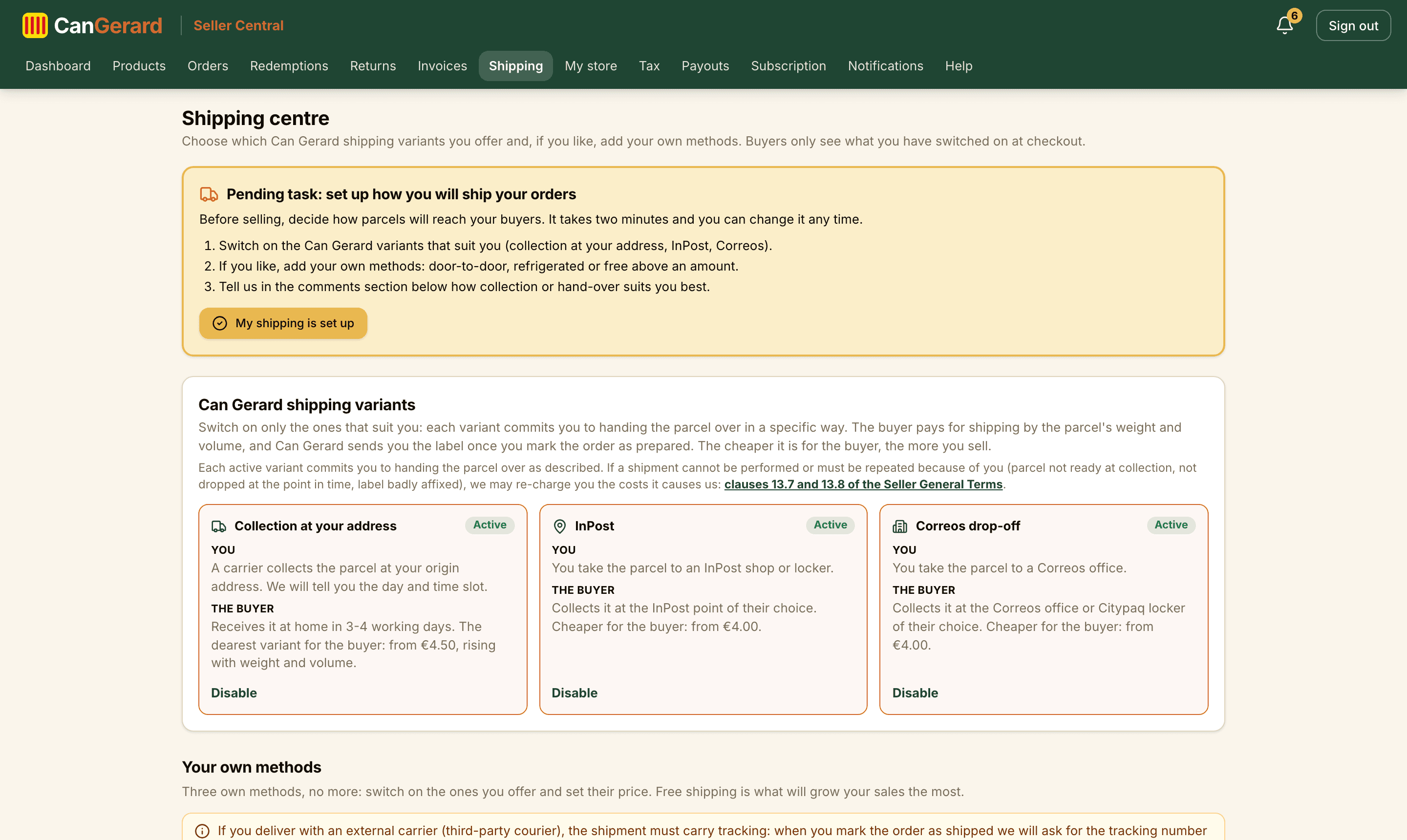
Under Shipping you find the Shipping centre, in three parts: the Can Gerard shipping variants you offer, your own methods and the shipping comments. At checkout, buyers only see what you have switched on. Can Gerard shipments are charged to the buyer from our rate by parcel weight and volume, with no commission for you.
The first screen after registering
Right after registering you land here with a welcome box and three steps: switch on the variants that suit you, add your own methods if you want any and leave us a comment about collection or delivery. Close the task with My shipping is set up (any saved change closes it too); until then the Dashboard reminds you.
Where we deliver (for now)
The platform only accepts addresses on the Spanish mainland: the Balearic and Canary Islands, Ceuta and Melilla and addresses outside Spain are rejected when the address is saved or the order placed. Your own methods have no zone pricing either, so everything you configure is for the mainland.
The Can Gerard shipping variants
Each variant is an end-to-end service: it defines how the parcel reaches us and how the buyer receives it. Switch on only the ones you can serve (at least one must stay on) and switch off any that does not suit you. By default only home collection is on.
| Variant | You / the buyer |
|---|---|
| Home collection (on by default) | A carrier collects the parcel at your origin address, on the day and slot we tell you with the label. The buyer receives it at home in 3-4 working days. It is the most expensive variant for them. |
| InPost | You take the labelled parcel to an InPost Punt Pack or locker. The buyer collects it at the InPost point they chose at checkout. Cheaper for the buyer. |
| Correos collection point | You take the labelled parcel to a Correos office. The buyer collects it at the Correos office or Citypaq they chose. Cheaper for the buyer. |
What each variant commits you to
Switching on a variant means handing over the parcel as described: ready and available during the collection slot, or dropped at the point within the period we give you with the label. If a shipment cannot be made or has to be repeated because of you, Can Gerard may re-charge the cost it causes (clauses 13.7 and 13.8 of the Seller Terms: /en/seller-terms#shipping).
Weight and dimensions: always round up
The price the buyer pays and the transport we book come from the weight and dimensions of the packed product you declare on each listing. If the carrier finds more weight or volume than declared, the price difference and surcharges may be re-charged to you (clause 13.6). When in doubt, always declare upwards.
Your own methods (three, fixed)
Below the variants there are three own methods, no more: switch on the ones you offer, set the price and the estimated delivery time (mandatory for anything you ship yourself) and click Save. No names or rules needed.
| Method | How it works |
|---|---|
| Own door-to-door shipping | You book the transport and the parcel reaches the buyer’s home. Charge what you like; as a reference, the screen shows what Can Gerard’s home delivery costs from. It makes sense if you are cheaper, if your parcels are bulky or if you do not use the Can Gerard variants. |
| Refrigerated shipping | Cold-chain transport with your own carrier, for products that need it. You set the price. |
| Free shipping above an amount | The buyer pays nothing for shipping above the Minimum order amount you choose. You pick who ships it: Myself (you handle it with your own means, like an own shipment) or Can Gerard (we book the home delivery like a normal shipment and invoice you the transport at our rate plus a €3 + VAT handling fee per shipment; it is deducted from your upcoming payouts and the invoice appears under Payouts tagged “transport re-charged”). How the parcel reaches us is agreed with you. |
On what you ship yourself (door to door, refrigerated and the free shipping you send yourself) you can limit the Delivery area: Everywhere we ship or Only some comarques, then tick them in the list (grouped by area; All picks a whole area). Buyers whose address is outside those comarques don't see that method, and if an order leaves them no option for your part, at checkout we tell them which comarques you deliver to. If your store only ships with its own methods and all of them have an area, your product pages state which comarques they are delivered to.
Free shipping = more sales
It is the strategy that converts best: if the buyer is short of the amount, the store itself reminds them (“…€X more to get free shipping”) and they often add more products. You absorb the cost within your margin.
With a third-party carrier, tracking is mandatory
If you deliver with a third-party courier, the shipment must be tracked: when you mark the order as shipped we ask for the number and the link, which the buyer and the CanGerard team see (the team uses it to confirm delivery and release your payout). If you deliver in person, delivery is confirmed with the buyer’s signature on your device (see “Receive and manage orders”).
What the buyer pays for an own method is entirely yours, commission-free: it is settled with your earnings and included in your sale invoice (Seller Terms, clauses 11.3 and 11.4).
Shipping comments
At the bottom of the page there is a comment log shared with the CanGerard team: write anything we need to know to handle your shipments (which hours suit collection best, how to access the premises, the days you close). We read it every time we book one of your shipments and try to pass it on to the carrier, although door-to-door carriers come when they can. We can leave notes for you there too.
Categories that require own shipping
Some categories (e.g. fashion) do not allow platform shipping, and the restriction is inherited by every subcategory. To publish there you need at least one active own method. Otherwise, when publishing you will see “This category doesn’t allow platform shipping. Set up at least one active own shipping method before publishing.” Also, if an order mixes your restricted and normal products, your whole shipment for that order goes through your methods. If a category is restricted later, the affected products go back to draft and we notify you. The same applies if the team sets your store to ship with own methods only (bulky goods): without an active own method, your products show but cannot be bought.
11Create your first product
Go to Products and click New product. The Create a product form opens, organised in cards. You can save at any time: with the Active product switch off, it is always saved as a draft, however incomplete.
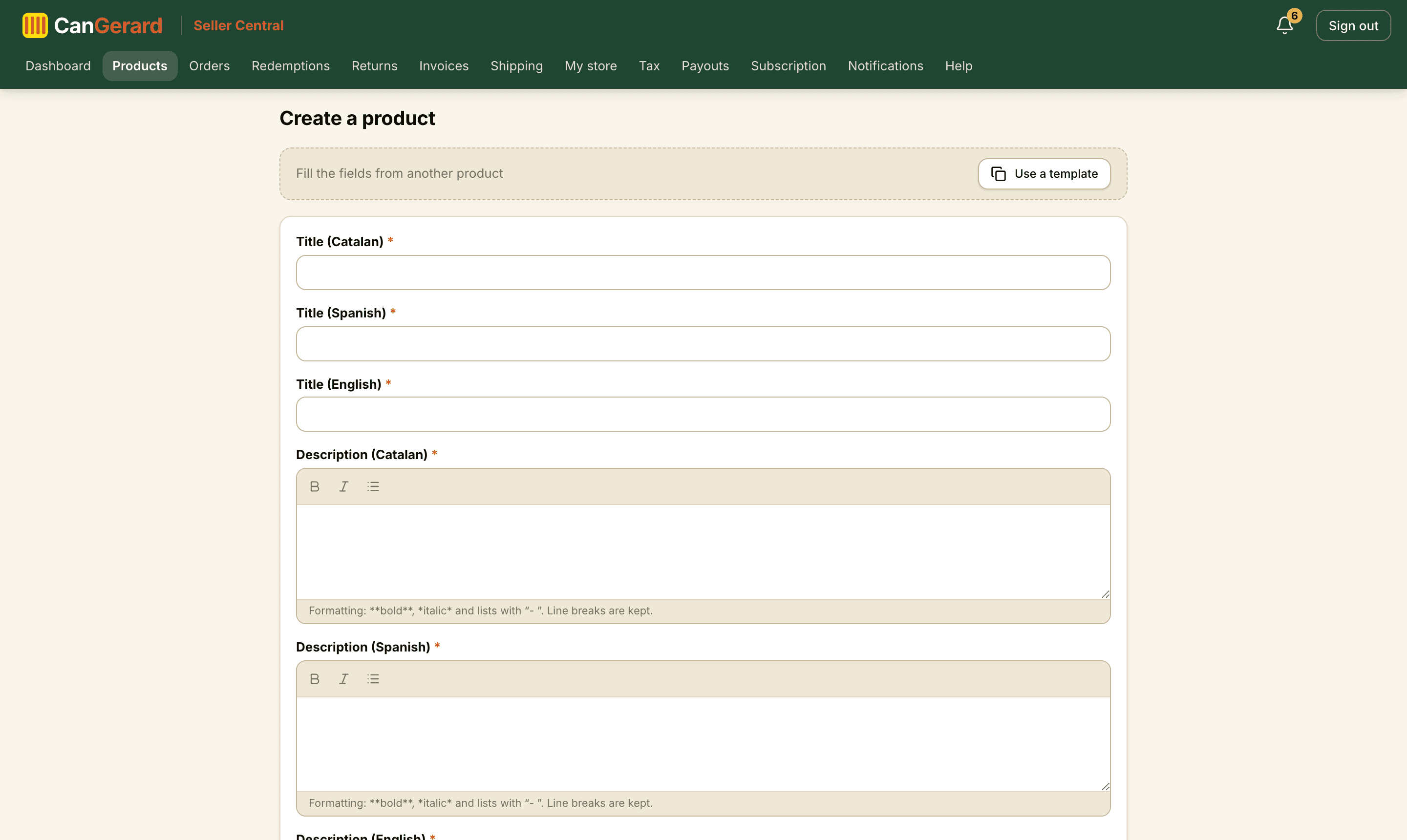
Don’t start from scratch
At the very top of the form sits the “Fill the fields from another product” strip with the Use a template button: it copies almost every field of a product you have already created in one click. More in the next section.
Basic information
| Field | Required | Details |
|---|---|---|
| Title (CA / ES / EN) | Yes | The product name in each language. |
| Description (CA / ES / EN) | Yes | With formatting: bold, italics and lists from the editor toolbar. Line breaks are kept. |
| Category | Yes | Pick the final subcategory (“Department › Subcategory”). It defines which extra blocks the form asks for: food, books, 18+ or experiences. |
| Brand | No | The brand, if applicable. |
| Sale price (€, VAT included) | Yes | The final price the buyer pays. |
| VAT (%) | Yes | Only 0, 4, 10 or 21. Under franchise it must be 0. |
| Reference price | No | A struck-through previous price, to show a discount. |
| Units in stock / Unlimited stock | Yes | The available quantity, or tick “unlimited” if it never runs out. |
| Eligible for return (14-day right of withdrawal) | Ticked by default | Untick only for excluded products: fresh and perishable, hygiene-sealed, personalised, downloaded ebooks or dated experiences. |
| Condition | Yes | New, Used or Refurbished. For second-hand, choose “Used”. |
| Production origin | No | Made in Catalonia, Catalan brand or Catalan distributor. |
Origin and its verification
An admin reviews the origin you pick before showing the badge to buyers. Until then the product carries no badge. In the product table you’ll see “Origin verified” (green) or “Pending review” (amber). If you change a product’s origin, it is reviewed again.
Images
The Images card sits right below the basic data. Click Add an image and upload up to 6 files (JPG, PNG, WebP or GIF). Reorder with the arrows, and the first one becomes the main image. Photos are compressed automatically in the browser, so you can upload them straight from your phone. These images are shared by every variant: they are what buyers see on the listing and in product lists. If a format has a photo of its own, upload it inside the variant: it is shown only when the buyer selects that variant.
Variants (formats of the same product)
The Variants card sits right below the basic data. If the product sells in several formats (e.g. coffee in 250 g, 500 g and 1 kg), click Add a variant and create one per format, each with its label (CA/ES/EN), price, stock, weight and dimensions, net content and image. You only enter this data on each variant: as soon as you add the first one, the product-level price, stock, shipping and net-content fields disappear (and whatever you had typed moves into the first variant). On the listing, the price shown is the lowest variant price and the stock is the sum. Each variant has its own stock (and can be unlimited). The parcel weight and dimensions and the net content are shared by every variant by default: you type them once in their sections and they are copied to each variant; if they differ (e.g. 250 g and 1 kg), switch the section’s selector to “per variant” and fill them in on each one.
Shipping data (required to publish)
We need the real weight and dimensions of the packed product: Weight (g), Length (cm), Width (cm) and Height (cm). Carriers bill by volumetric weight, so this determines the real cost. Experiences don’t ask for it. With variants, they are entered once (shared) or on each variant. Always round up: the shipping price and the transport we book come from this data, and if the carrier finds more weight or volume, the difference may be re-charged to you (Seller Terms, clause 13.6). The form reminds you with an amber box.
Net content (required for food)
Enter the Amount and the Unit of the content without packaging so we can show the unit price (€/kg or €/l). For food it is mandatory and needs a measurable unit: g, kg, ml or l (the “unit” option can’t produce a €/kg price and the system won’t accept it there). With variants, net content is entered on each variant (for food, on all of them).
Compliance and safety
| Field | Required | Details |
|---|---|---|
| Over-18s only product (18+) | Conditional | Tick it for alcohol, knives… In 18+ categories it is ticked and locked automatically. |
| Digital product (immediate download, ebook) | No | Digital products aren’t shipped and the Download link is required. |
| Manufacturer | Yes (physical) | Mandatory traceability (product safety, GPSR). Optionally, the manufacturer’s address, the EU responsible person and the safety warnings (in Spanish). |
| Publisher’s fixed price (books) | Books | New books can’t be discounted more than 5 % off this price (Law 10/2007). It doesn’t apply to used books. |
Food information (Reg. 1169/2011)
In food categories a dedicated card appears: Ingredients (required, at least in Spanish), Allergens, Storage and Responsible food business. Remember the RGSEAA number on the Tax page too: without it, food can’t be published.
Specifications
- 1Under Specifications, click Add a specification to add name → value pairs (CA/ES/EN). If you leave Spanish or English blank, the Catalan shows.
Saving, activating and previewing
| Control | What it does |
|---|---|
| Save | The only save button. Saves the product with the state the switch indicates. |
| Active product (switch) | On: saving publishes it (if you pass every gate). Off: it is saved as a draft. If you can’t publish yet, the switch is disabled and a notice explains why. |
| Preview product page | Opens a full-screen preview with desktop, tablet and mobile views, even before saving. |
If something is missing when you publish
With the switch on, the fields are validated first: missing ones are highlighted in red and you’ll see “Some required fields are missing. Check the fields highlighted in red.” If a server gate fails (net content, manufacturer, ingredients, RGSEAA, book price, own shipping…), nothing is saved and the message tells you exactly what is missing.
Manage your products
The Your products table shows the status (Draft, Active, Out of stock, Archived), the origin and its verification, the price and the stock, with the Edit and Archive links. Careful: Archive is immediate, with no confirmation. To recover an archived product, edit it and save it again.
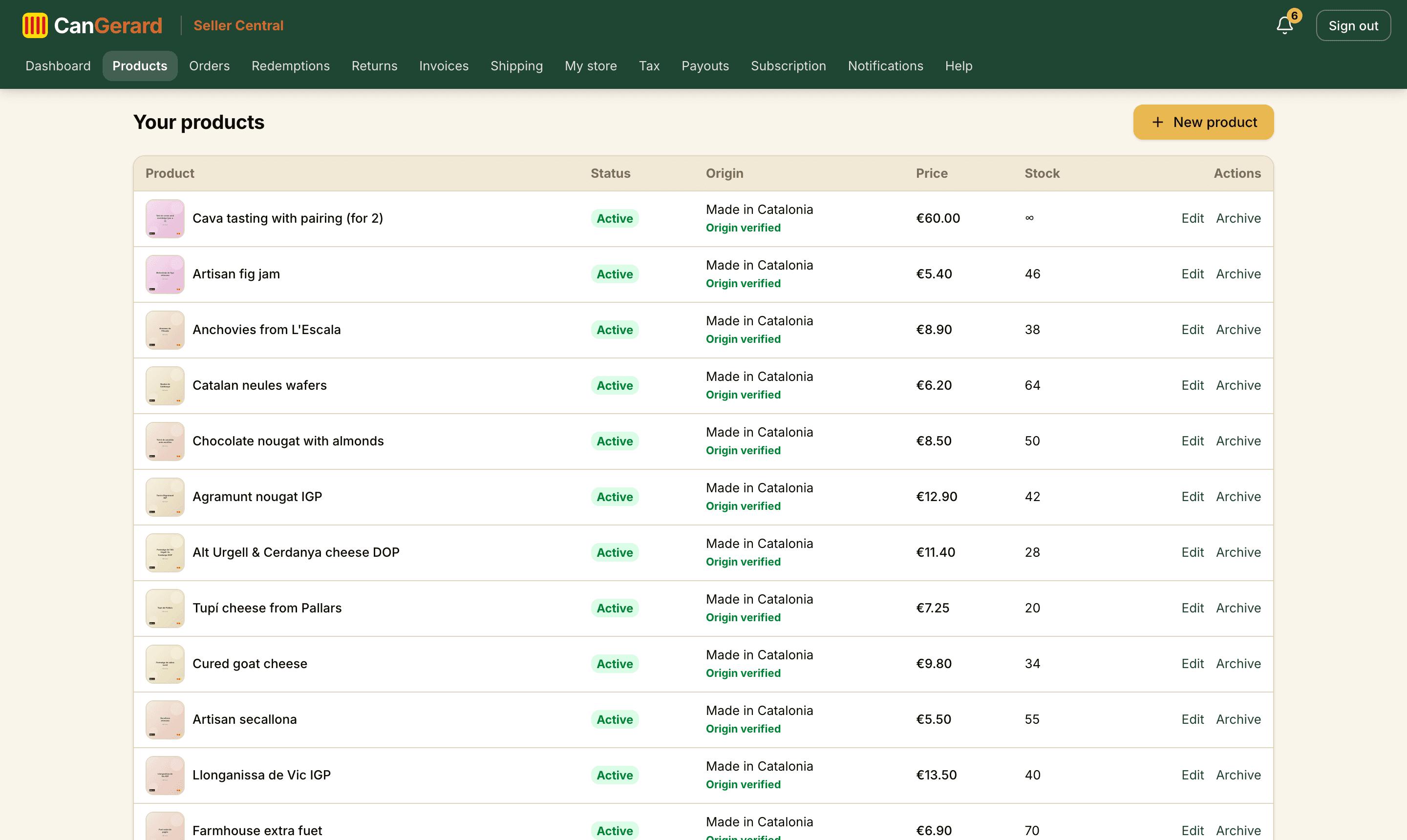
12Create products in series with templates
If you sell a family of similar products (jams, T-shirts, wines…), there’s no need to repeat the whole form every time: any non-archived product of yours can act as a template. There is nothing to create or maintain: the “template” is simply another product of yours.
How to use it, step by step
- 1Open New product (or edit an existing one).
- 2At the very top, on the “Fill the fields from another product” strip, click Use a template.
- 3The “Choose a product as a template” dialog opens with the Search products… box: it shows your 24 most recent products and searches titles in any of the three languages.
- 4Click the product you want: the fields fill in instantly and you’ll see the confirmation “Data copied. The title and images aren’t copied.”
- 5Type the new title, upload the images and adjust whatever is needed (price, stock, net content…). Click Save.
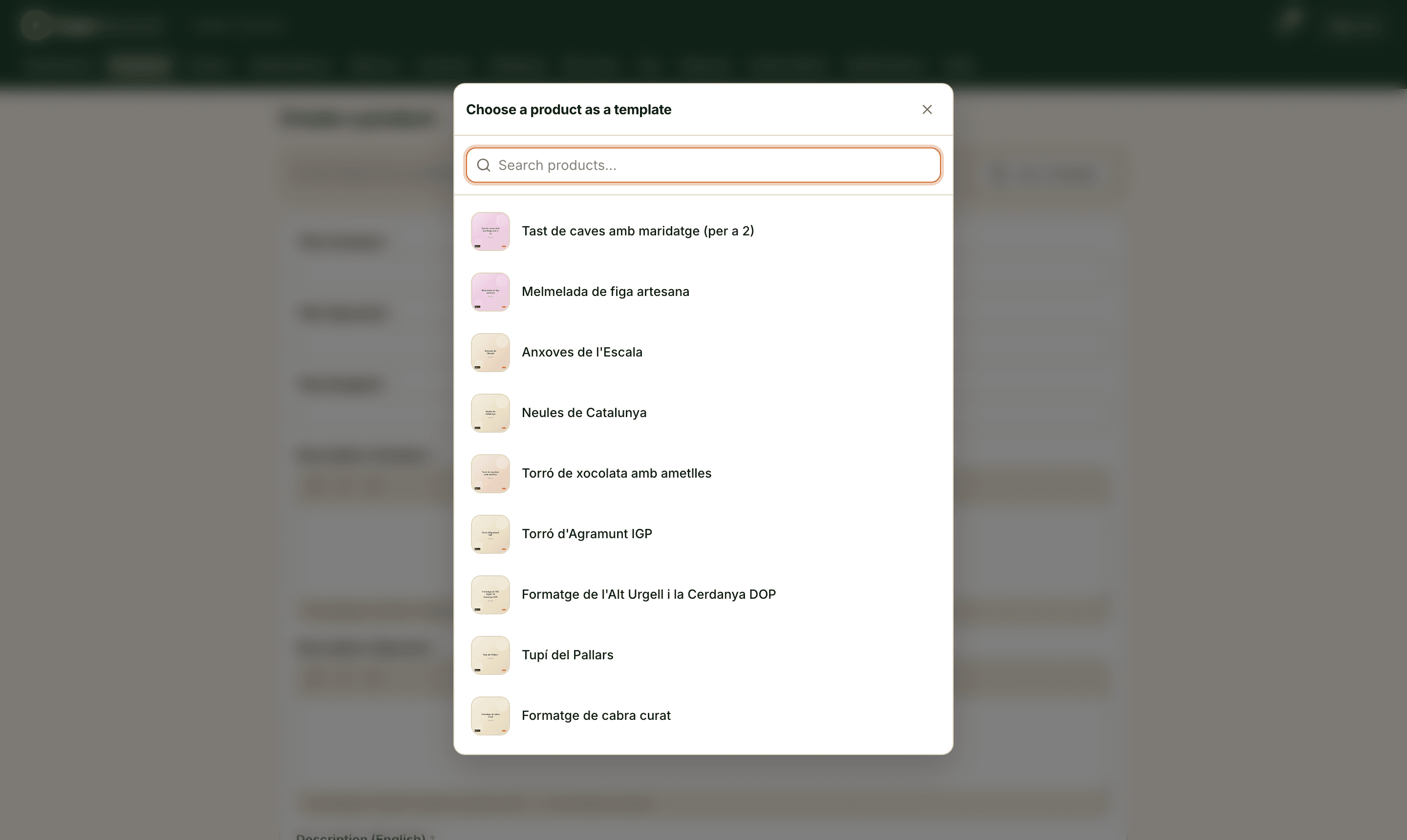
What is copied and what isn’t
| Copied | Not copied |
|---|---|
| Descriptions (CA/ES/EN), brand, category, price, VAT, reference price, stock, condition, origin | The title (so you don’t create duplicates without noticing) |
| Weight and dimensions, net content, food data, manufacturer and GPSR, 18+, digital, book fixed price | The images (every product needs its own) |
| All the specifications and all the variants (with their prices and dimensions) |
The trick: one “model” draft per family
Create a draft product for each family (e.g. “MODEL jam 250 g”) with the category, VAT, weight, manufacturer and specifications already in place. Drafts appear in the picker too, so every new product in the family is: template → title → photos → Save.
On an existing product, it overwrites
If you apply a template while editing a product, the form values are overwritten (except the title and images). Nothing is saved until you click Save, so you can always reload the page to undo it. Archived products disappear from the picker.
13Sell experiences (workshops, tastings, gift boxes)
The Experiences department is for products that aren’t shipped: workshops, tastings, activities and gift boxes. Pick an Experiences subcategory and the form adapts: it doesn’t ask for weight, dimensions or a manufacturer, stock is always unlimited (“Experiences are always available (no stock).”) and the “Experience delivery” card appears.
Delivery: automatic message and/or PDF voucher
| Field | Required | Details |
|---|---|---|
| Automatic message (Catalan) | At least one of the two | The text the buyer receives on payment (instructions, how to book…). Optionally also in Spanish and English. |
| Downloadable voucher (PDF) | At least one of the two | Upload a PDF (max 10 MB) with Upload voucher (PDF). The same voucher is sent to every buyer. |
Redemption codes: how an experience is validated
For each unit sold, a unique code is generated (format CG-EXP-…) which the buyer sees on their order together with the invoice number. When the customer comes to enjoy the experience, validate the code under Redemptions:
- 1Go to Experience redemptions, type the code into the Redemption code field and click Look up.
- 2Check the details: product, buyer, order, invoice and purchase date. The status must be “Valid”.
- 3Optionally jot down a Note (optional) (e.g. “booked date”) and click Mark as redeemed. You’ll see “Experience redeemed.”
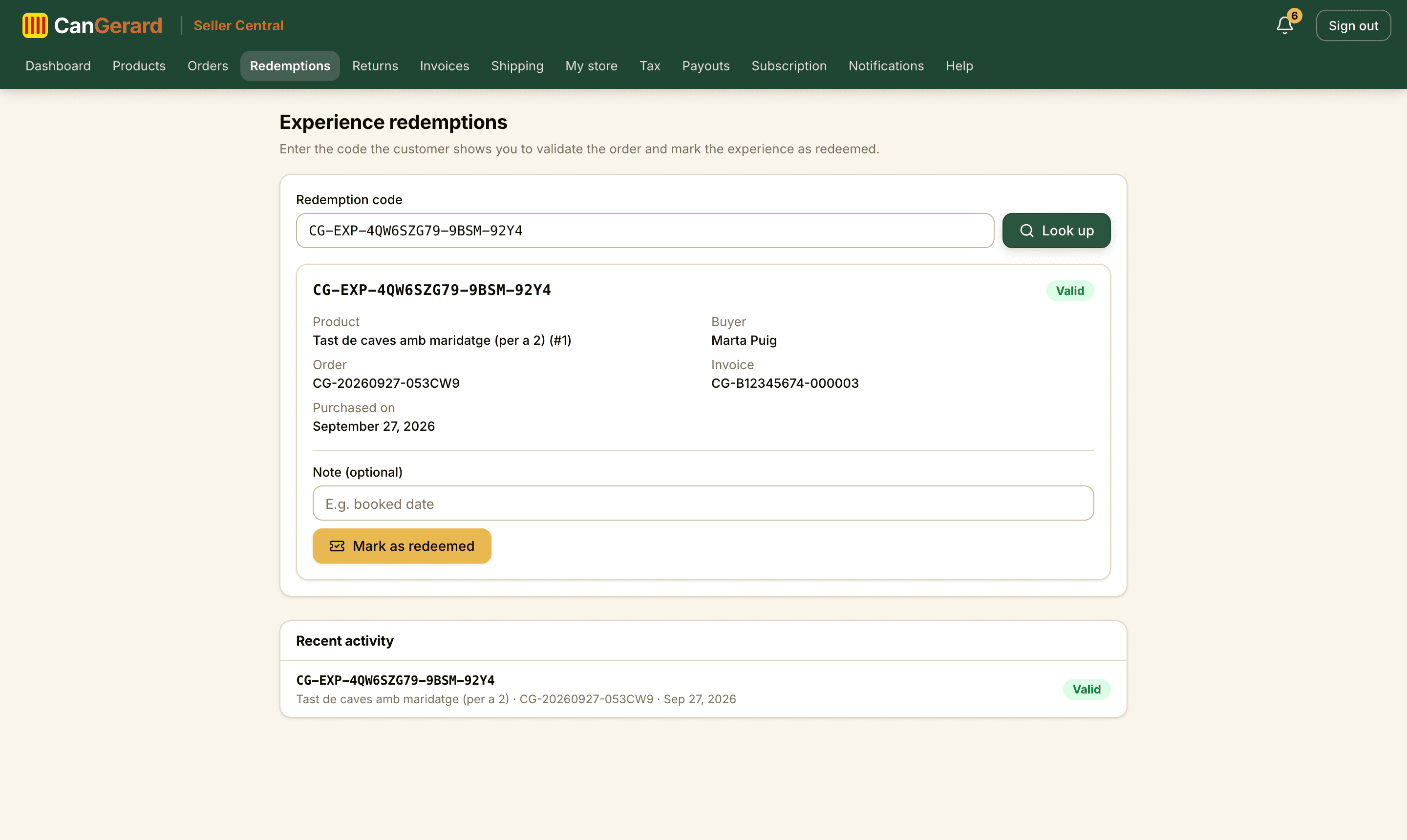
Each code works exactly once
A code can only be redeemed once: if it has already been used you’ll see “This code has already been redeemed.”, and if the purchase was refunded, “This code was voided by a refund.” The “Recent activity” list on the same page records the latest movements.
Returns for experiences
By default, experiences keep the 14-day right of withdrawal (they are open vouchers). Untick Eligible for return only if the experience has a specific date (art. 103.l TRLGDCU). A redeemed code is a consumed service and can’t be returned.
14The two gates: publishing and selling
CanGerard has two independent gates. Understanding them saves you confusion:
| Gate | What it takes |
|---|---|
| Publishing (the product shows in the store) | Approved store + complete origin address + a complete product (weight and dimensions, manufacturer, and for food net content, ingredients and RGSEAA. In restricted categories, an active own shipping method). |
| Selling (customers can buy) | On top of the above: complete fiscal details. They are normally already complete since sign-up, just like the billing agreement. |
| Being there (from 1 October 2026) | An active subscription (the 14-day trial counts) or the lifetime-free account. Without it neither gate helps: the whole store stays hidden until you start a plan, and then everything reappears as it was. |
Between the two an intermediate state can exist: the product is visible but not buyable. With the tax details requested at sign-up it is uncommon (it only happens on profiles created by the team that haven’t completed them yet). The form puts it like this: “The product will be visible in the store, but customers won’t be able to buy it until you complete your fiscal details.” The buyer sees the purchase buttons disabled with a notice that buying will soon be possible. The other “visible but not buyable” case is in your hands: vacation mode (see “Your store profile”).
Stripe is not a gate
Stripe onboarding is not needed to publish or to sell: it only determines when you receive the money. Earnings from sales made before completing it are kept safe and transferred automatically once you finish (you have 30 calendar days from activation or your first sale, per the Seller Terms).
Quick check
A Dashboard with no yellow notices (neither “Origin address missing.” nor “You can’t sell yet.”) and no red “Your store is not visible.” notice = you can publish and sell. Each notice links straight to the page where it is resolved.
15Receive and manage orders
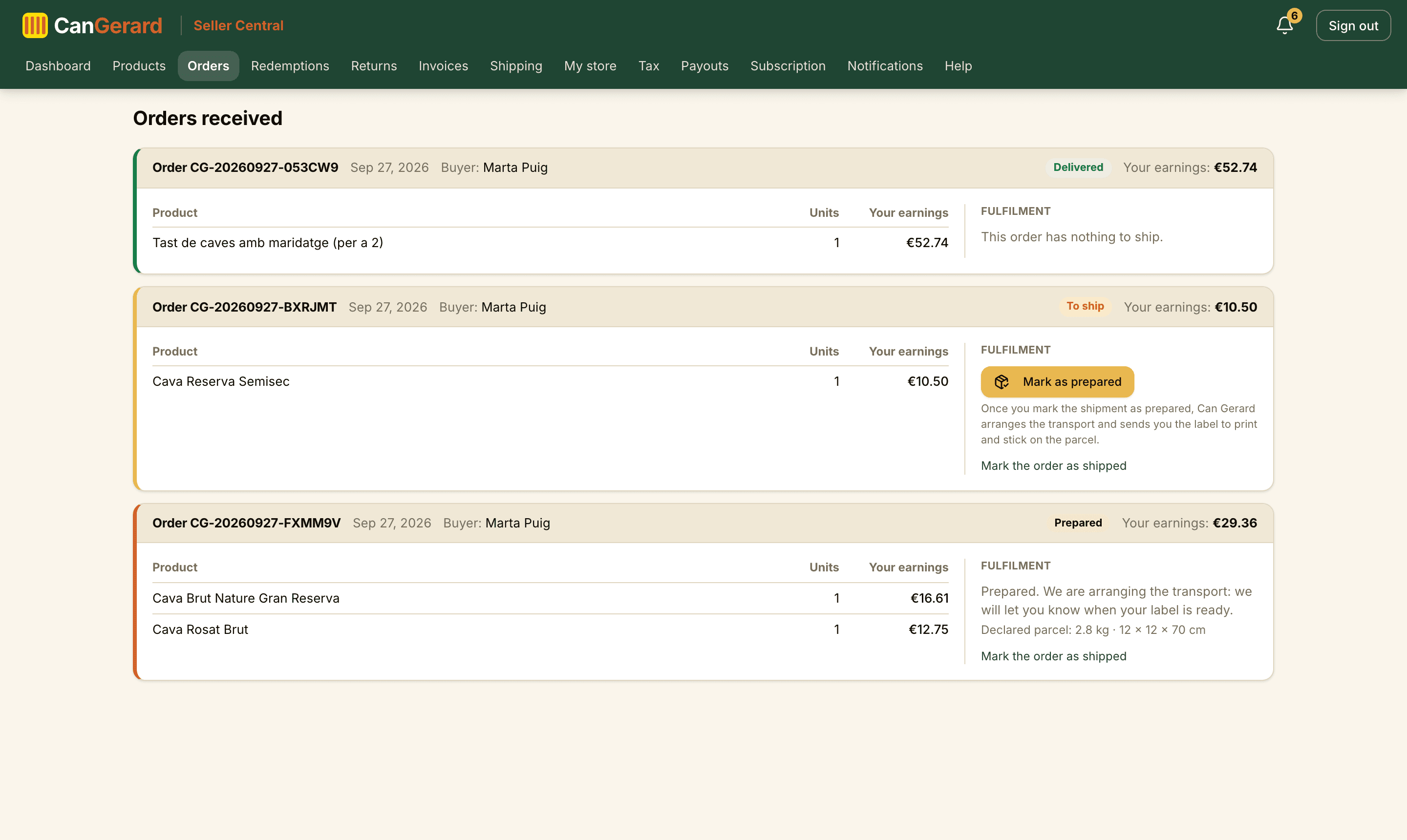
When a customer buys one of your products, you get the “New order” alert (in the app and by email) and the order appears under Orders (“Orders received”). Each order is one card with everything the customer bought from you in that purchase:
| Part of the card | Content |
|---|---|
| Header | The order number, date, buyer, status and your total earnings for the order. |
| Product, Units and Your earnings | One line per product (with the variant, where relevant), the quantity and what you will receive for each line, commission deducted. A refunded line is struck through with “Cancelled” and one being returned shows “In return”. |
| Fulfilment | The only place where you act: the Mark as prepared button, the label once it is ready, the own-shipping controls and the link to mark the order as shipped or delivered. |
The coloured stripe on the left tells you at a glance where each order stands: gold “To ship” (your move), terracotta “Prepared” (waiting for the label), blue “Shipped”, green “Delivered” and grey “Cancelled”.
One order, one parcel
Everything a customer bought from you in one order travels in a single shipment: it is prepared, labelled and shipped as a whole, with one button. Lines cannot be shipped separately or in different parcels.
Can Gerard shipping, step by step
- 1Pack the parcel with every product of the order, boxed and ready to go.
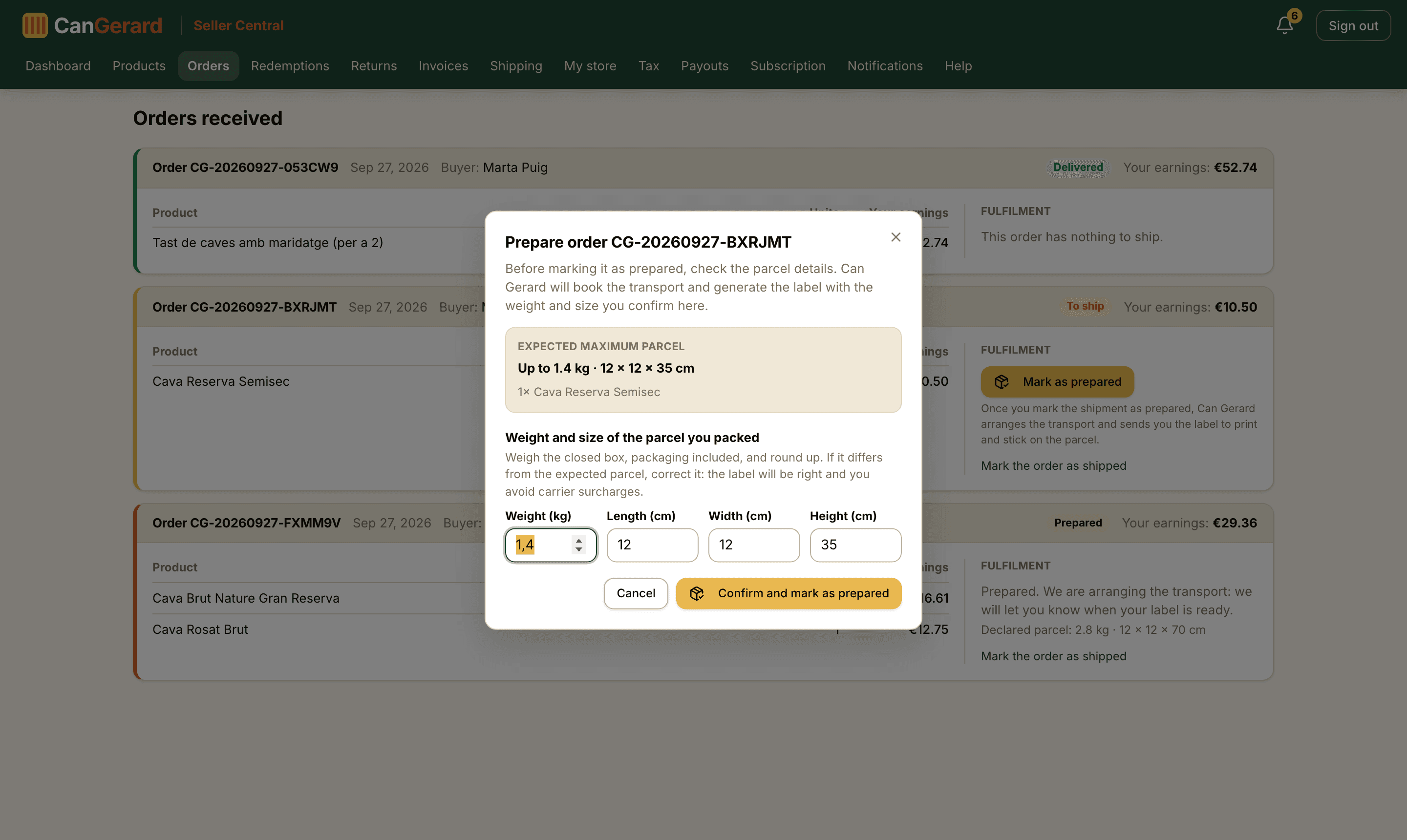
- 2Click Mark as prepared. A window opens with the “Expected maximum parcel”: the weight and size of the box worked out from your products’ shipping data (what you declared on each listing), which is what the shipping price was calculated on. Weigh the closed box, packaging included, and measure it. If it matches, leave it as it is; if it differs, correct the weight (kg) and size (cm), rounding up. If you make a mistake, use Back to the expected values.
- 3Click Confirm and mark as prepared. The card changes to “Prepared. We are arranging the transport: we will let you know when your label is ready.” and shows the declared parcel. At that moment the buyer is told their part is prepared, the automatic-cancellation countdown stops and the buyer can no longer cancel their part.
- 4The CanGerard team books the transport with the variant the buyer chose and with the weight and size you confirmed. When the label is ready you receive the “Shipping label ready” email with the PDF attached, and the card shows Download label, the hand-over instruction and, if any, the “Instructions from Can Gerard” (collection day and slot, deadline to drop it at the point…).
- 5Print and affix the label unaltered and hand the parcel over according to the variant: with home collection, have it ready at your origin address on the day and slot given; with InPost, take it to a Punt Pack or locker; with Correos, to a Correos office. No appointment needed: show the labelled parcel and that is it.
- 6From here on there is nothing else to do: when the parcel moves, the order becomes Shipped (the buyer gets the email with the tracking number and link) and, on delivery, Delivered, which is what starts your payout clock.
Declare the real parcel
The label is booked with the weight and size you confirm in this window. If the real parcel weighs or measures more than declared, the carrier may add a surcharge, which Can Gerard can pass on to you with the price difference (clause 13.6 of the Seller Terms: /en/seller-terms#shipping). A minute with the scales and a tape measure saves you surprises.
When does the label arrive?
It is not instant: we book it by hand, usually within the same working day. If a shipment is urgent or has any particularity, write it in the shipping comments of the Shipping centre. The collection point the buyer chose does not affect you: it is already printed on the label.
Own shipping
The card of an own-shipping order shows the delivery address (the buyer’s name, address and phone) and, if they wrote any, the buyer’s instructions for the delivery (buzzer, access…). If a third-party carrier delivers it, pass them on when you book it.
- With a third-party carrier: the card says “Own shipping” with the method name. When you click Mark as shipped we ask for the tracking number and link (mandatory): the buyer gets them by email and sees them on their order, and the CanGerard team uses them to confirm delivery and release your payout. If you make a mistake, use Fix tracking. The charge for this shipment is yours and is settled with your earnings.
- Hand delivery: if you deliver the order yourself, use Hand delivery: type the buyer’s name and ID number and pass them your device to tick the confirmation box. That signature counts as delivery and starts the payout clock automatically.
- Free shipping handled by Can Gerard: it works like a Can Gerard shipment (mark it prepared, confirm the parcel and wait for the label); the transport cost plus the handling fee are deducted from your payouts with an invoice.
Each card also has the Mark the order as shipped link (and, once shipped, Mark the order as delivered). It acts on the whole order at once: every line changes status together and the buyer gets a single notice.
The 4-business-day countdown
You have 4 business days from payment to mark each order prepared (Can Gerard shipping) or shipped (own shipping). On the second business day we send a reminder; if the deadline runs out, the order is cancelled automatically, the buyer is refunded in full and the payment processing fees are charged to you (Seller Terms, clause 10.5). One click in time spares you all of it.
Orders being returned and delays
If an order has a return in progress, the buttons are replaced by “In return, cannot ship” until it is resolved. And if a paid order takes too long to show as delivered, we remind you with the “Shipment delayed” alert. The buyer can also cancel their part of the order while it is neither prepared nor shipped: if so, you get the “part cancelled” alert, the refund is automatic and you have nothing to do.
Summary on the Dashboard
Once approved, the Dashboard shows Revenue, Orders, Units sold and Active products, the “Sales over the last 7 days” chart, “Low stock alerts” and “Recent orders”.
16Manage returns
When a buyer requests a return, you receive the “New return” alert and the request appears under Returns: “When the returned goods arrive at your origin address, mark them as received so the platform can process the refund.”
- 1The buyer ships the products to your origin address.
- 2When they arrive, open the request and click Mark as received.
- 3The platform executes the refund to the buyer: this step is not yours to do.
| Status | What it means |
|---|---|
| Requested | The buyer has requested the return and is sending you the products. |
| Received by seller | You have confirmed receipt and the platform processes the refund. |
| Refunded | The buyer has their money back. |
| Rejected | The request wasn’t accepted. |
The paperwork takes care of itself
With every refunded return, your Lifetime earnings adjust, the sale’s rectifying invoice is issued (you’ll see it under Invoices, marked “Rectifies …”) and CanGerard credits you the commission on the returned units with its matching credit note (“Commission credit note”). You don’t have to ask for anything.
Returns and your payout
An open return freezes the release of that shipment’s payout until it is resolved: if it is refunded, the amount is deducted; if it is rejected, the payout continues on its way. You’ll see it on the Payouts page as “Blocked by a return”.
17Invoices
Sale invoices (in your name)
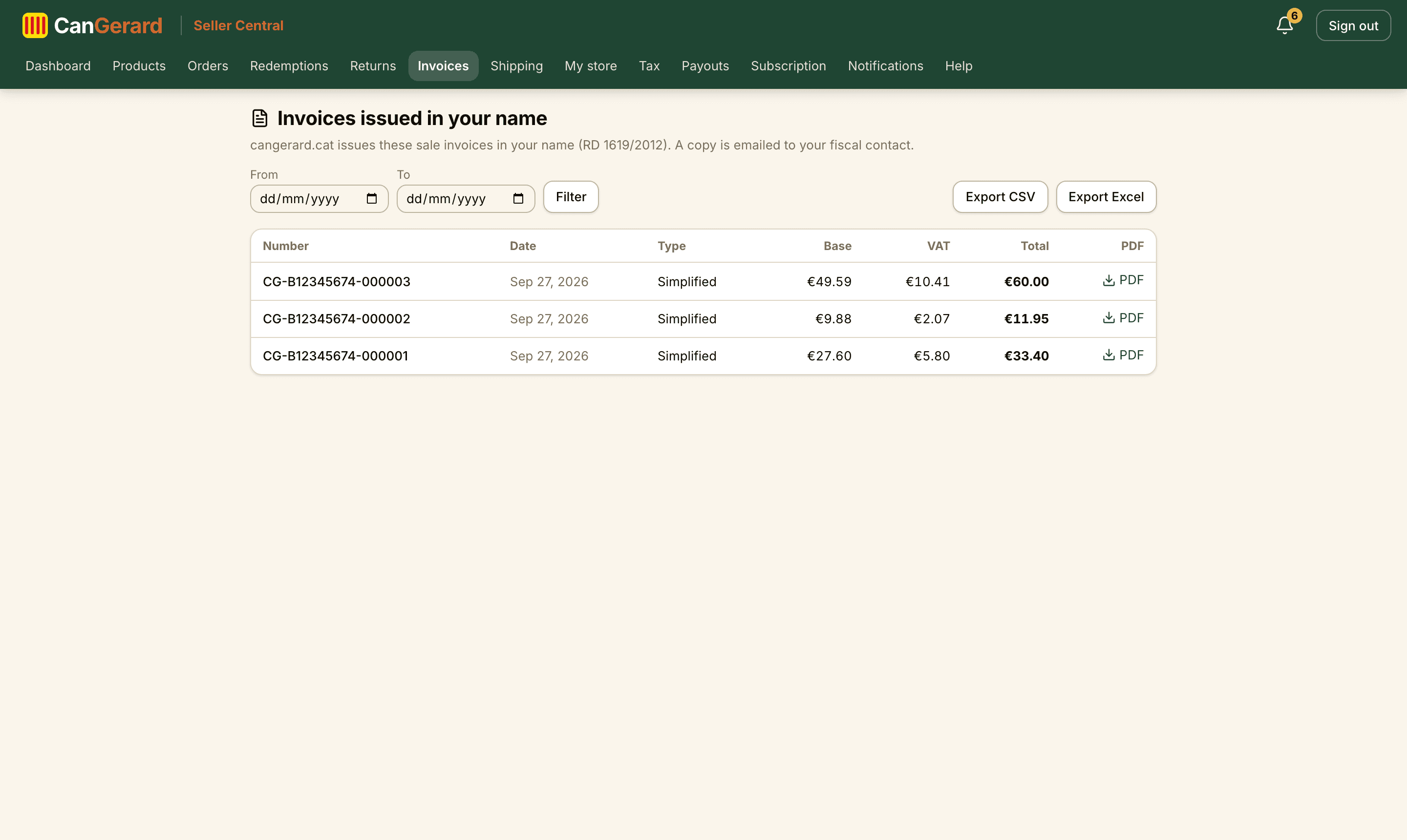
Under Invoices sit the sale invoices the platform issues automatically in your name for every order (RD 1619/2012, art. 5). They are read-only: number, date, type (Simplified, Full or Rectifying), base, VAT, total and the PDF to download (if it says “Pending”, the PDF is still being generated). We also email a copy to your fiscal contact email.
You can filter by dates (From / To) and take them with you via Export CSV or Export Excel, in a format designed for your accountant. Return rectifications appear linked to the original invoice (“Rectifies …”).
Commission invoices (from CanGerard to you)
The invoices for the commission CanGerard charges you live under Payouts, in the “Commission invoices” table. One is issued per order (see the payouts section).
18Get paid (Stripe Connect)
To transfer your earnings, CanGerard uses Stripe Connect. Stripe collects your identity and bank details with its own secure, hosted flow: CanGerard has no access to them. Go to Payouts (“Payouts & verification”).
When do I get paid? The payout hold
CanGerard pays you per shipment, once the buyer has received the order: the payout is released 14 calendar days after confirmed delivery (for experiences and digital products, 14 days after payment). On platform shipments and signed hand deliveries everything is automatic; on own shipments with a carrier, the CanGerard team verifies delivery through the tracking you recorded and releases the payout. Until then, the money is held at Stripe: it never passes through CanGerard’s account.
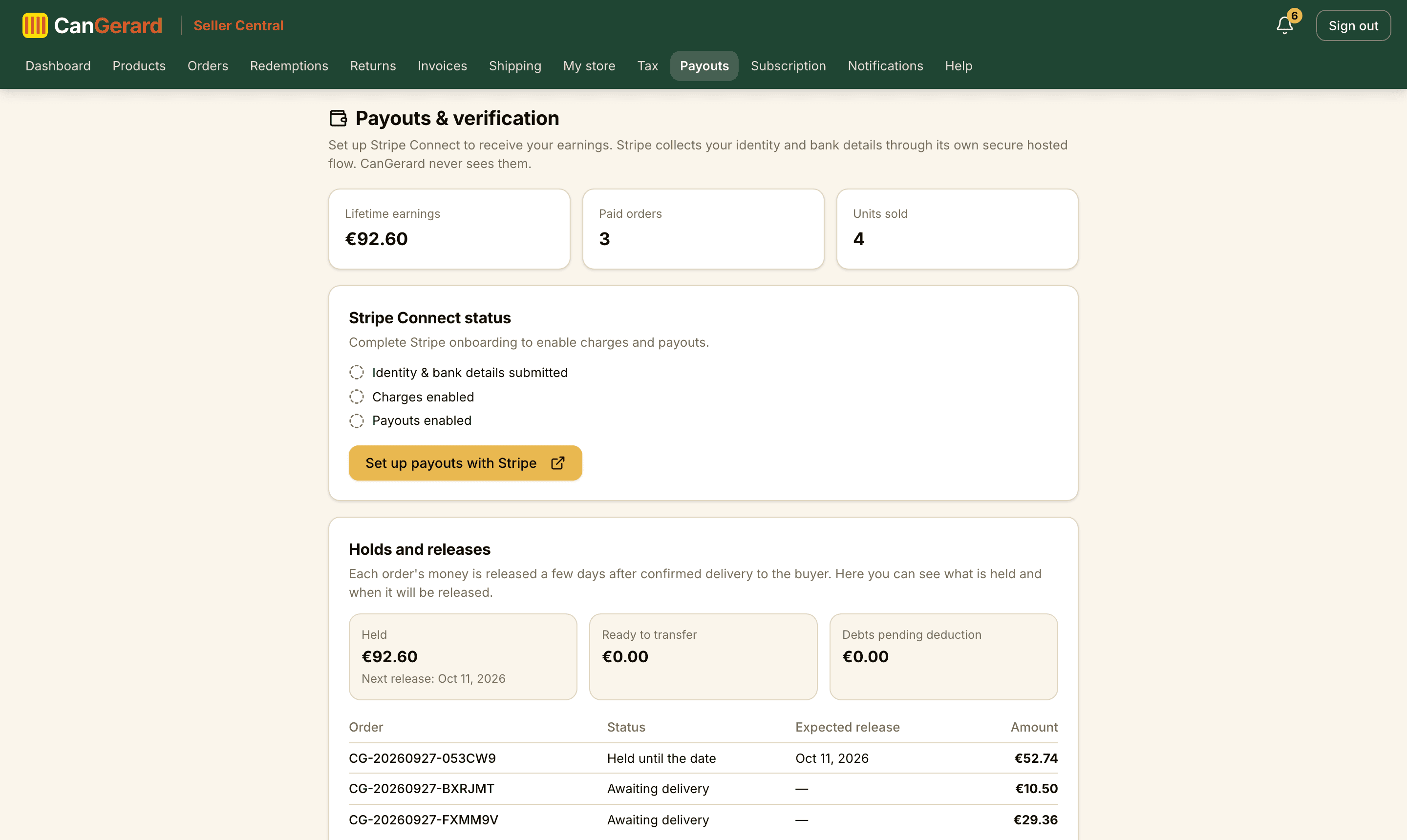
On the same page, the “Holds and releases” card shows it all: what you have held (with the next release date), what is ready to transfer and the debts pending deduction (for example, the fees of an order cancelled for not shipping), with per-order detail.
You can sell before completing Stripe onboarding
Sales don’t stop: if you haven’t completed Stripe yet, your earnings are kept safe and the page shows it (“… in earnings is awaiting transfer to your Stripe account.”). When you finish onboarding, they transfer on their own. The Seller Terms give you 30 calendar days from activation or your first sale to complete it.
The page, top to bottom
- Three indicators: Lifetime earnings (including the charges for your own shipping), Paid orders and Units sold.
- The Holds and releases card: held, ready to transfer and outstanding debts, with the per-order table.
- Stripe Connect status, with three checks: “Identity & bank details submitted”, “Charges enabled” and “Payouts enabled”.
- Your commission: “CanGerard commission: …%” (10 % by default).
- The Commission invoices table, with filters and export.
Completing onboarding
- 1Click Set up payouts with Stripe.
- 2On Stripe, follow the guided flow: business details, identity and bank account (IBAN).
- 3When you finish, you return to CanGerard with “Thanks, we’ve refreshed your Stripe status.” and the three checks turn green one by one. Afterwards, the same button becomes Manage your Stripe account.
If the link expires
If you see “Your onboarding link expired”, click the button again to resume onboarding where you left off.
The commission and its invoices
The commission applies only to the price of the products (VAT included): shipping charges never accrue it, and Stripe’s fees are already included in it. For every order, the matching commission invoice is issued (already collected, because it is withheld from the payment) and you also receive it by email. In the table you can filter by dates, download each PDF and export everything with Export CSV or Export Excel. If there is a return, you’ll see the credit note flagged “(credit note)”; if one of your orders is cancelled automatically for not shipping, you’ll also see the invoice for the re-charged fees flagged “(re-charged fees)”, deducted from your upcoming payouts. The same goes for the “transport re-charged” of the free shipping Can Gerard handles (rate plus a €3 + VAT handling fee). Subscription invoices are not here: find them under Subscription.
19Notifications and preferences
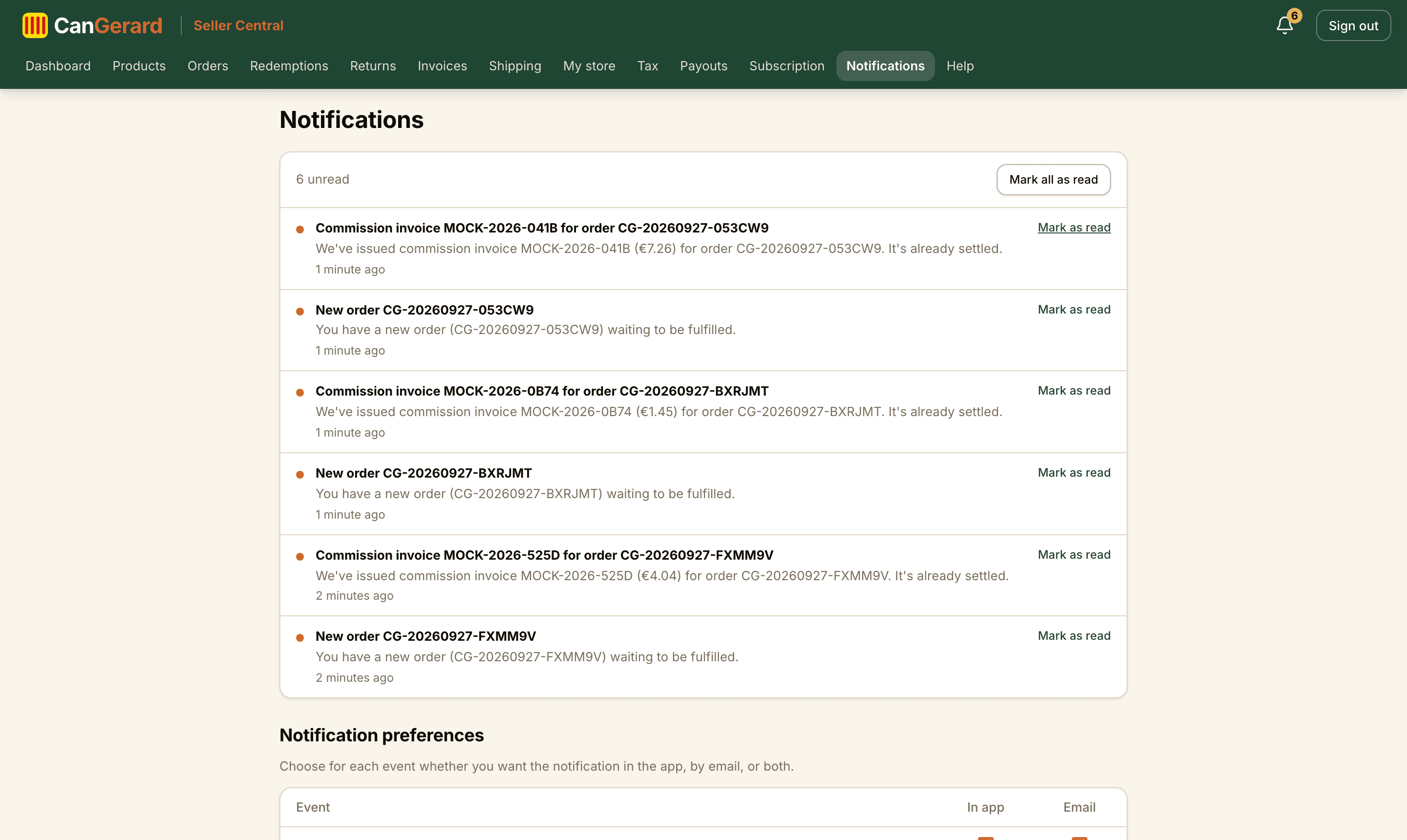
The bell in the header collects every alert (new orders, labels, returns, invoices, low stock, reviews…). Under Notifications sits the full list, with “… unread”, Mark all as read and per-item marking.
Below it, “Notification preferences”: for each event you choose whether you want the alert In app, by Email or both. Changes save on their own. Strictly fiscal emails and essential order emails can’t be turned off entirely.
The ones worth keeping on
“New order”, “Shipping label ready” (comes with the PDF attached), “Order with your own shipping” and “New return” are the day-to-day operational alerts: if you get them by email, you don’t need to keep an eye on the platform.
20Checklist and troubleshooting
Checklist to start selling
- 1I created my seller account and verified my email.
- 2My store is approved and my origin address is complete.
- 3My subscription is active (or I have the lifetime-free account): no notice under Subscription.
- 4I completed all my fiscal details (with the RGSEAA if I sell food). The billing agreement was already accepted at sign-up.
- 5I went through the Shipping centre: Can Gerard variants switched on, own methods if I want them (and free shipping above an amount) and a comment about collection.
- 6I created my products (templates do half the work for me) and activated them.
- 7The Dashboard shows no yellow notices: buying is possible.
- 8I completed Stripe onboarding (three green checks) to receive my earnings.
“I can’t publish” or “it can’t be bought”: checks
| Symptom | Cause / fix |
|---|---|
| The “Active product” switch is disabled | The store isn’t approved or the origin address is missing. The notice below it says which. |
| “Some required fields are missing…” when saving | Check the fields in red: titles, descriptions, price, weight and dimensions, manufacturer… |
| Net content error | A food product without an amount or with the “unit” unit: it needs g, kg, ml or l. |
| “…you must enter your RGSEAA number…” | Fill in the RGSEAA number on the Tax page. |
| “This category doesn’t allow platform shipping…” | Create and enable an own shipping method. |
| The product shows but can’t be bought | Fiscal details are missing: check the “You can’t sell yet.” notice on the Dashboard. |
| No products show in the template picker | Only your non-archived products appear. Use the search box if you have more than 24. |
| “Order awaiting shipment” alert | Mark it prepared (or shipped, with your own transport) within 4 business days of payment, or it will be cancelled automatically and the processing fees charged to you. |
| The buy buttons show disabled with a holiday notice | Your vacation mode is on. Turn it off under My store with Reopen the shop. |
| Red “Your store is not visible.” notice on the Dashboard | From 1 October 2026 a subscription is required. Go to Subscription, pick a plan and start the trial: everything is back online instantly. |
| The order card says “Prepared. We are arranging the transport…” and I have no label | That is normal: the team books the shipment by hand and sends you the label (usually the same working day). If it is urgent, write it in the shipping comments. |
Glossary
| Term | Meaning |
|---|---|
| Draft | A product saved but not visible in the store. |
| Active | A product published and visible to buyers. |
| Out of stock | A published product with no available units. |
| Archived | A product withdrawn from the store (recoverable by editing and saving it). |
| Template | Any product of yours used to fill in a new product’s form. |
| Publishing gate | Approval + origin address: makes the product visible. |
| Selling gate | Complete fiscal details: lets customers buy. |
| Third-party billing agreement | The authorisation for CanGerard to issue the receipts and invoices for your sales in your name. Accepted with a checkbox at sign-up. |
| Rectifying invoice | The credit note that corrects an invoice when there is a return. |
| Redemption | The validation of a sold experience’s unique code. |
| Stripe Connect | The service that transfers your earnings to your bank account. |
| Prepared | The status you set when the parcel is ready, confirming its real weight and size: notifies the buyer, stops the countdown and has Can Gerard book the transport and send you the label. |
| Expected maximum parcel | The weight and size of an order’s box worked out from your products’ shipping data. It is shown when you mark the order prepared so you can confirm or correct it. |
| Shipping variant | Each end-to-end Can Gerard service: home collection, InPost or Correos collection point. |
| Free shipping handled by Can Gerard | Your free method that we ship: the buyer pays €0 and we invoice you the rate plus a €3 + VAT handling fee. |
| Seller subscription | The fixed fee (monthly or yearly) required from 1 October 2026 for your store to be visible; 14-day trial. |
| Lifetime-free account | The subscription exemption of founding sellers (approved with a product published on 1 October 2026) or granted by the team. |
| Payout hold | Each shipment’s payout is released 14 calendar days after confirmed delivery to the buyer. |
| Hand delivery | An in-person delivery confirmed with the buyer’s signature (name, ID and checkbox) on your device. |
| Vacation mode | The temporary purchase freeze you set with two dates; the catalogue stays visible. |
If you get stuck
Contact the CanGerard team from the contact page, or ask for a call and we’ll walk you through it live. Have your store name and account email at hand.